 MinoPDF
Compress PDF
Shrink a PDF right in your browser. Pick a level, see the original size, the compressed size, and exactly how much was saved — text stays selectable whenever possible. Private, runs locally, no upload.
Runs in your browser
Files are never uploaded — they stay on your device.
No page limit
Any document size, no per-page caps or quotas.
No watermarks
Clean output with no branding added.
No sign-up
Just open the tool and use it — no email, no account.
How to verify
Verify in 3 steps
No promises to take on faith — check it yourself in about 30 seconds.
- 1Open DevTools → Network tab
- 2Add a file and run the tool
- 3Confirm: no request carries your file
Once the page has loaded you can also unplug the network — every tool keeps working.
Full method & limitsKey Features
Smaller PDF, Same Layout
Reduce a PDF to a shareable size while keeping the page layout, fonts, and structure intact for text-based files.
Three Compression Levels
Recommended for everyday sharing, Strong for a smaller file, and Maximum when the page count or size matters most.
Size Comparison
See the original size, the compressed size, and the percentage saved before you download anything.
Keeps Text Selectable
On text-based PDFs the recommended level optimizes structure only, so words stay searchable and copyable.
Handles Scans and Photos
Image-heavy and scanned PDFs are re-encoded page by page to bring the file size down — always on Strong and Maximum, and on Recommended as well, since nothing else can shrink them.
Private and Local
Compression runs entirely in your browser. Your PDF never leaves the device and is not sent to any server.
See How the File Changes
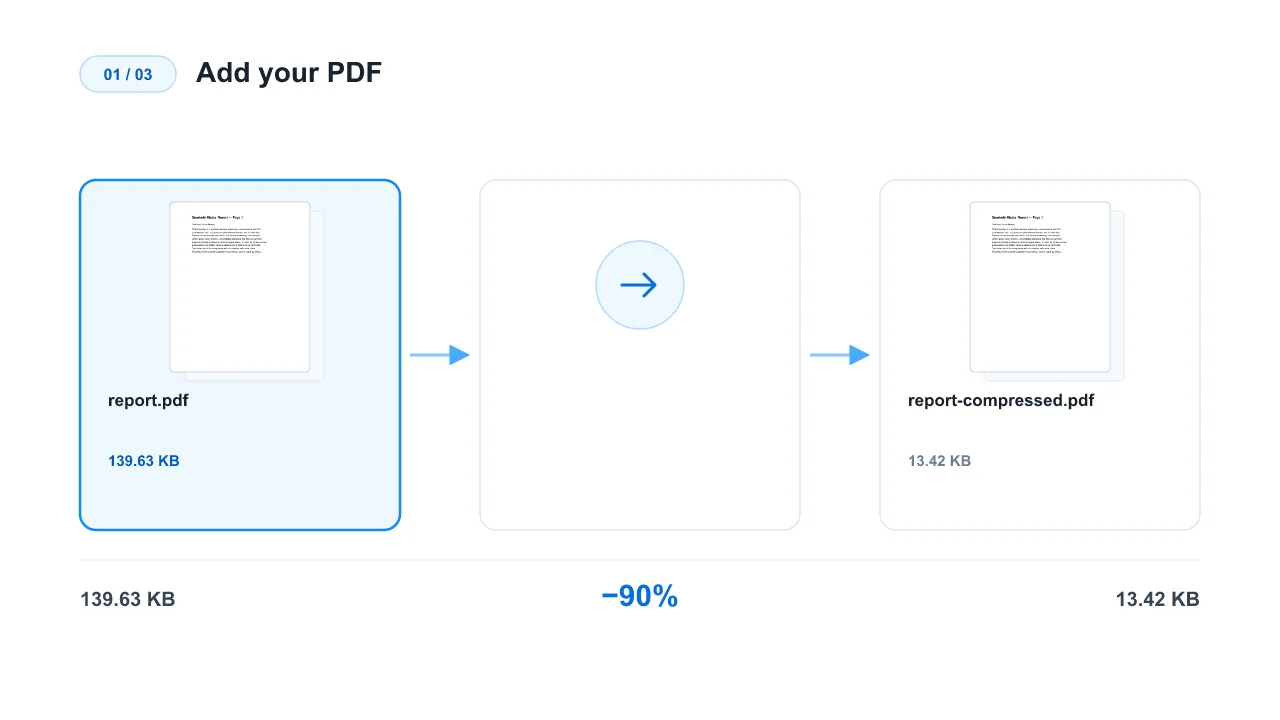
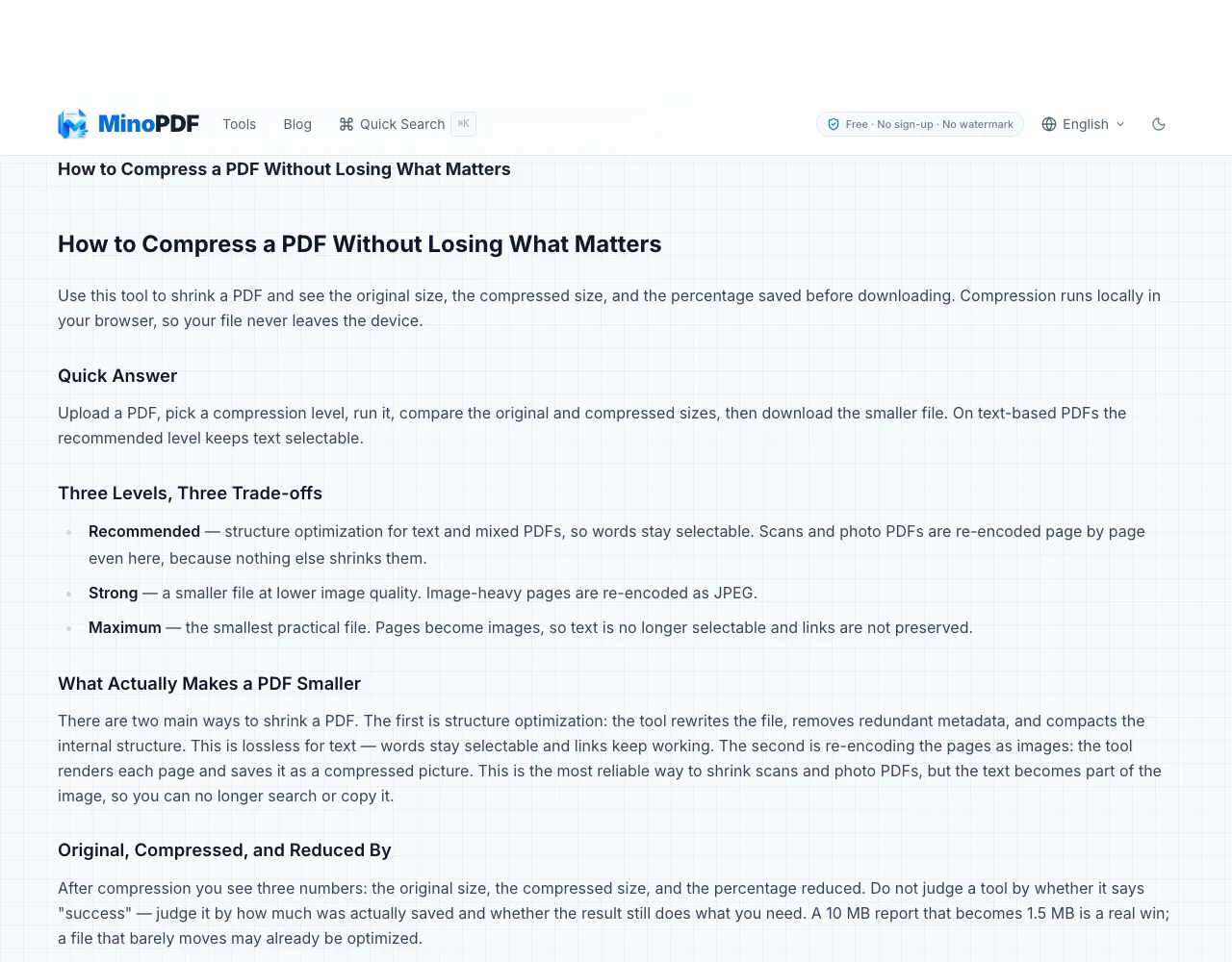
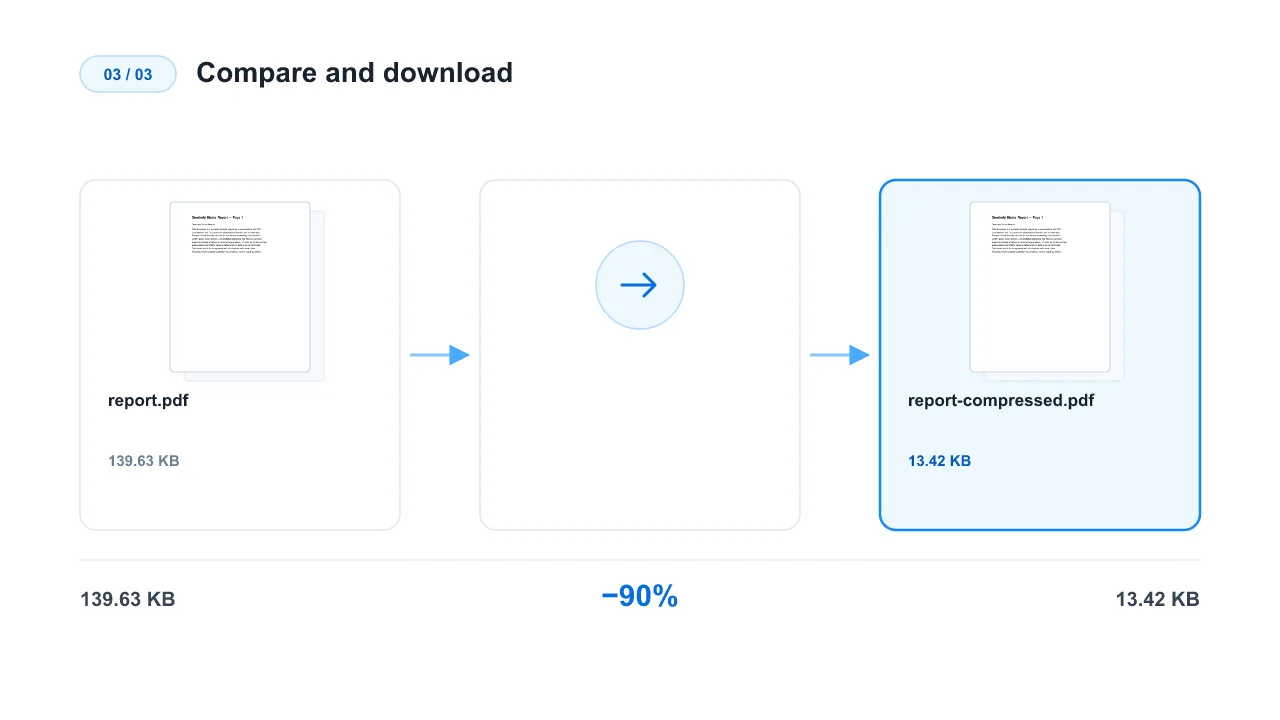
How to Use
Add your PDF
Drag and drop or select a single PDF. Text-based reports, ebooks, and exports usually compress well.
Choose a level
Pick Recommended for sharing, Strong for a smaller file, or Maximum when you need the lightest result.
Compare and download
Run compression, review the original size versus the compressed size, then download the smaller file.
How to Compress a PDF Without Losing What Matters
How to Compress a PDF Without Losing What Matters
Use this tool to shrink a PDF and see the original size, the compressed size, and the percentage saved before downloading. Compression runs locally in your browser, so your file never leaves the device.
Quick Answer
Upload a PDF, pick a compression level, run it, compare the original and compressed sizes, then download the smaller file. On text-based PDFs the recommended level keeps text selectable.
Three Levels, Three Trade-offs
- Recommended — structure optimization for text and mixed PDFs, so words stay selectable. Scans and photo PDFs are re-encoded page by page even here, because nothing else shrinks them.
- Strong — a smaller file at lower image quality. Image-heavy pages are re-encoded as JPEG.
- Maximum — the smallest practical file. Pages become images, so text is no longer selectable and links are not preserved.
What Actually Makes a PDF Smaller
There are two main ways to shrink a PDF. The first is structure optimization: the tool rewrites the file, removes redundant metadata, and compacts the internal structure. This is lossless for text — words stay selectable and links keep working. The second is re-encoding the pages as images: the tool renders each page and saves it as a compressed picture. This is the most reliable way to shrink scans and photo PDFs, but the text becomes part of the image, so you can no longer search or copy it.
Original, Compressed, and Reduced By
After compression you see three numbers: the original size, the compressed size, and the percentage reduced. Do not judge a tool by whether it says "success" — judge it by how much was actually saved and whether the result still does what you need. A 10 MB report that becomes 1.139.63 KB is a real win; a file that barely moves may already be optimized.
When Compression Cannot Help
Some PDFs are already minimal: their streams are compressed and there are no large images left to re-encode. In that case no path makes the file smaller, and an honest tool returns your original unchanged rather than shipping a bigger or fake-smaller file. If you need a specific size, a target-size compressor searches for the smallest settings that reach your goal.
Check the Preview Before Sharing
If pages were re-encoded as images, open the preview and read a page or two. Make sure the text is still clear enough for your reader and that you do not need selectable text, links, or forms. For text-based PDFs, prefer the recommended level so the document stays fully usable.
Related Tools
Related Guides
How to Compress a PDF to 100 KB, 200 KB, 500 KB or 1 MB
Shrink a PDF to fit under a size limit like 100 KB, 200 KB, 500 KB or 1 MB. The tool searches for the smallest settings that reach your goal, then stops. Runs locally in your browser.
Why Is My PDF File So Large? The Real Causes — and How to Shrink It
A PDF can balloon from a few pages because of embedded images, full fonts, and leftover metadata. Learn what actually makes a PDF big, then shrink it locally in your browser.