
How to Compress a PDF to 100 KB, 200 KB, 500 KB or 1 MB
Have a hard limit to hit? Set 100 KB, 200 KB, 500 KB or 1 MB — the tool stops as soon as the file fits, right in your browser.
Upload portals, web forms and email attachments all impose hard size ceilings: 100 KB, 200 KB, 500 KB or 1 MB is a common set. When a file is "too large", the answer is not a guess at a quality slider — it is a tool that aims for the ceiling you need and stops as soon as it fits.
Why compress to a specific size
A plain "make it smaller" tool leaves you checking the result by hand and guessing again. A target-size tool removes that loop: you name the limit (say 500 KB) and the tool keeps shrinking only until the file is under it, so the document stays as clear as that limit allows.
Typical cases:
- A job portal rejects attachments over 200 KB.
- A visa or permit form caps uploads at 100 KB or 500 KB.
- An email provider bounces messages whose attachment exceeds 1 MB on a tight connection.
- A web form silently fails when the file is even slightly over its 500 KB cap.
How to compress a PDF to a target size
- Open the Compress PDF to Target Size tool.
- Add your PDF by dragging it in or selecting the file.
- Choose a target: 100 KB, 200 KB, 500 KB or 1 MB — match the limit of wherever you are uploading or sending.
- Run the compression and read the result. If it shows the target was reached, download the file. If not, pick a larger target or open the plain Compress PDF tool and use its strongest level.
That is the whole flow. The only judgement call is which target to pick, and the next sections explain how to choose.
How the tool reaches your target
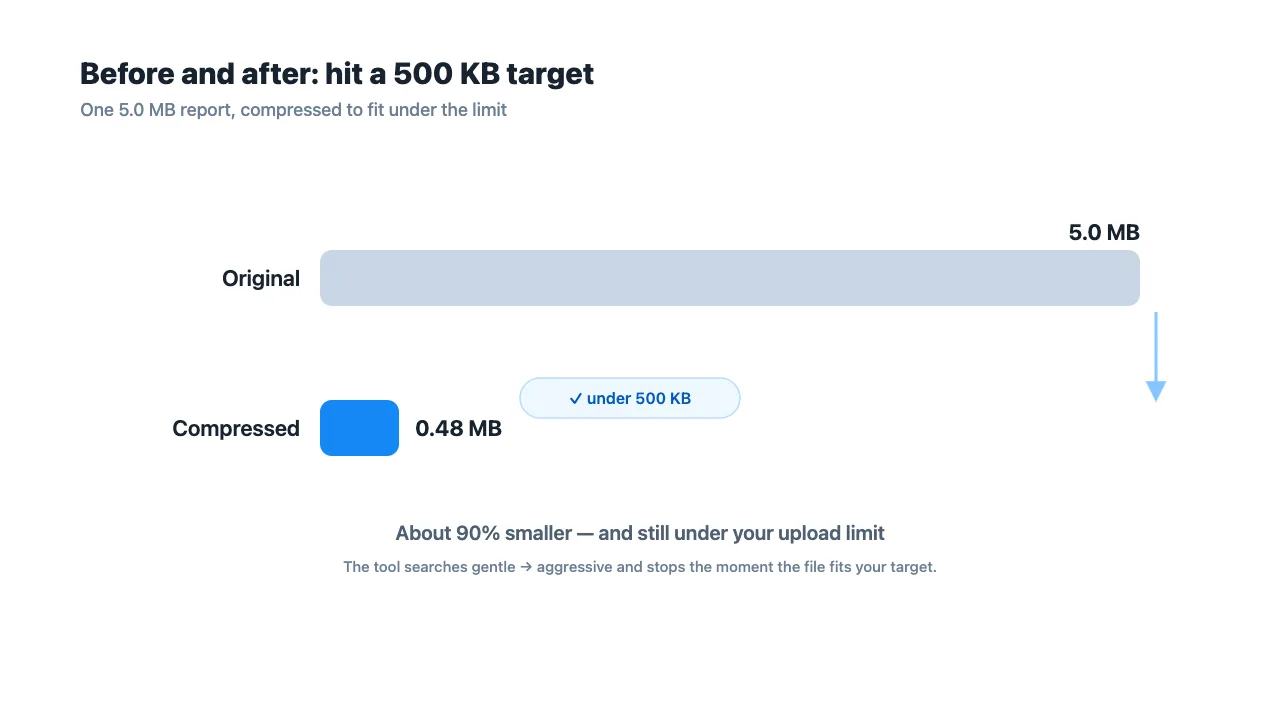
The tool does not jump straight to a heavy, blurry setting. It searches from gentle to aggressive and stops the moment the file fits under your target, which keeps quality as high as the goal permits:
- Lossless structure optimization first. It rewrites the file, removes redundant metadata, and compacts the internal structure. If that alone gets the file under your target, it stops there — and the text stays fully selectable.
- Page re-encoding only if needed. If structure tuning is not enough, it re-encodes pages as images, trying settings from fine to coarse: higher resolution and higher JPEG quality first, then progressively smaller. It stops as soon as the file is under the target.
So "100 KB" is treated as a ceiling to get under, not an exact byte count to hit. The tool aims for the smallest file that clears your limit, then stops.
100 KB, 200 KB, 500 KB or 1 MB — which to pick
- 1 MB is roomy. It suits a multi-page report or a document with a few photos, and often needs only structure optimization, so text usually stays selectable.
- 500 KB is the most common portal and email limit. Many text-based PDFs reach it through structure optimization alone.
- 200 KB is tight. Expect pages to be re-encoded as images in many cases, which means text is no longer selectable.
- 100 KB is the tightest of the four. It almost always means pages become images, so treat the result as a fixed picture of the document, not an editable one.
Rule of thumb: pick the largest target that the destination accepts. A bigger ceiling keeps more quality and more selectable text.
When the target cannot be met
Not every PDF can reach a tiny target. A scan that is already compressed, or a document packed with detailed images, may have little room left to shrink.
When the search exhausts its settings without fitting under the target, the tool returns the smallest readable result and tells you plainly that the target was not reached — instead of shipping a file that is still too big and pretending it worked. At that point you decide:
- Is a larger target acceptable to the portal or recipient? Try 500 KB or 1 MB.
- Does the document have many detailed images? Consider the plain Compress PDF tool at its maximum level, or split it first with Split PDF.
That honesty matters more than a fake success: you learn the real limit rather than discovering the rejection at upload time.
Does the text stay selectable? Do links survive?
It depends on which path the search took:
- Structure optimization (text-based PDFs). Words stay selectable, and links, forms and annotations are kept.
- Page re-encoding as images (tight targets). The pages become pictures, so text is no longer selectable and links, forms and annotations are not carried into the result.
The result label tells you which path was applied, so check the preview before sharing anything where you need selectable text or live links.
Is my PDF uploaded?
No. Compression runs entirely in your browser. Your PDF never leaves the device and is not sent to any server. This also means very large or many-page files are limited by your available memory; if a file is too big, the tool tells you and suggests a smaller file or fewer pages.
Frequently Asked Questions
Can I compress a PDF to exactly 100 KB?
The target is a ceiling, not an exact byte count. The tool shrinks until the file is under 100 KB, then stops — so the result is "at most 100 KB", often a little under, not precisely 100,000 bytes.
What if my PDF cannot reach 200 KB?
Some files are already minimal or are scans with little room to shrink. When the target cannot be met, the tool returns the smallest readable result and clearly says the target was not reached, rather than outputting a file that is still too large.
Will the text stay selectable after compression?
On text-based PDFs the search prefers structure optimization, so words stay selectable. When pages must be re-encoded as images to hit a small target, text is no longer selectable — the result shows which path was used.
Is there a file size limit?
Compression runs in your browser, so very large or many-page PDFs are limited by available memory. If a file is too large, the tool tells you and suggests a smaller file or fewer pages.
Compress PDF to Target Size vs the plain Compress PDF tool?
Use Compress PDF when you want a quality level for general sharing. Use Compress PDF to Target Size when a portal, email or form requires the file to be under a specific size such as 100 KB or 200 KB.
Are my files uploaded to a server?
No. The compression runs locally in your browser; your PDF never leaves your device and is not sent to any server.
Related Tools
- Compress PDF to Target Size — shrink to 100 KB, 200 KB, 500 KB or 1 MB.
- Compress PDF — pick a quality level for general sharing.
- Remove PDF Metadata — stripping metadata can also trim a few kilobytes before you compress.
Have a question or feedback? Contact us