 MinoPDF
Inspect PDF
See what a PDF is still carrying before you send it. A read-only check that lists metadata, comments, links, scripts, attachments, fonts and text layers — and points to the tool that fixes each one.
Runs in your browser
Files are never uploaded — they stay on your device.
No page limit
Any document size, no per-page caps or quotas.
No watermarks
Clean output with no branding added.
No sign-up
Just open the tool and use it — no email, no account.
How to verify
Verify in 3 steps
No promises to take on faith — check it yourself in about 30 seconds.
- 1Open DevTools → Network tab
- 2Add a file and run the tool
- 3Confirm: no request carries your file
Once the page has loaded you can also unplug the network — every tool keeps working.
Full method & limitsKey Features
Read-Only Check
Nothing is modified and no new PDF is produced. The file you drop in is the file you keep — this page only reports what it found.
Fifteen Categories at Once
Metadata, local file paths, XMP, document ID, comments, highlights, links, form values, JavaScript, attachments, fonts, text layers, images, page sizes and encryption.
Counts, Not Copies
The report lists categories, counts and field names only — never the actual values. Nothing sensitive leaves the page.
Every Finding Has a Next Step
Anything fixable links straight to the tool that fixes it. Anything not covered here says so instead of staying silent.
Honest About Gaps
Categories that could not be scanned are listed as not covered. A clean result means this check found nothing — not that nothing exists.
Runs Locally
The scan happens in your browser. There is no upload, and the findings never leave the tab.
See How the File Changes
How to Use
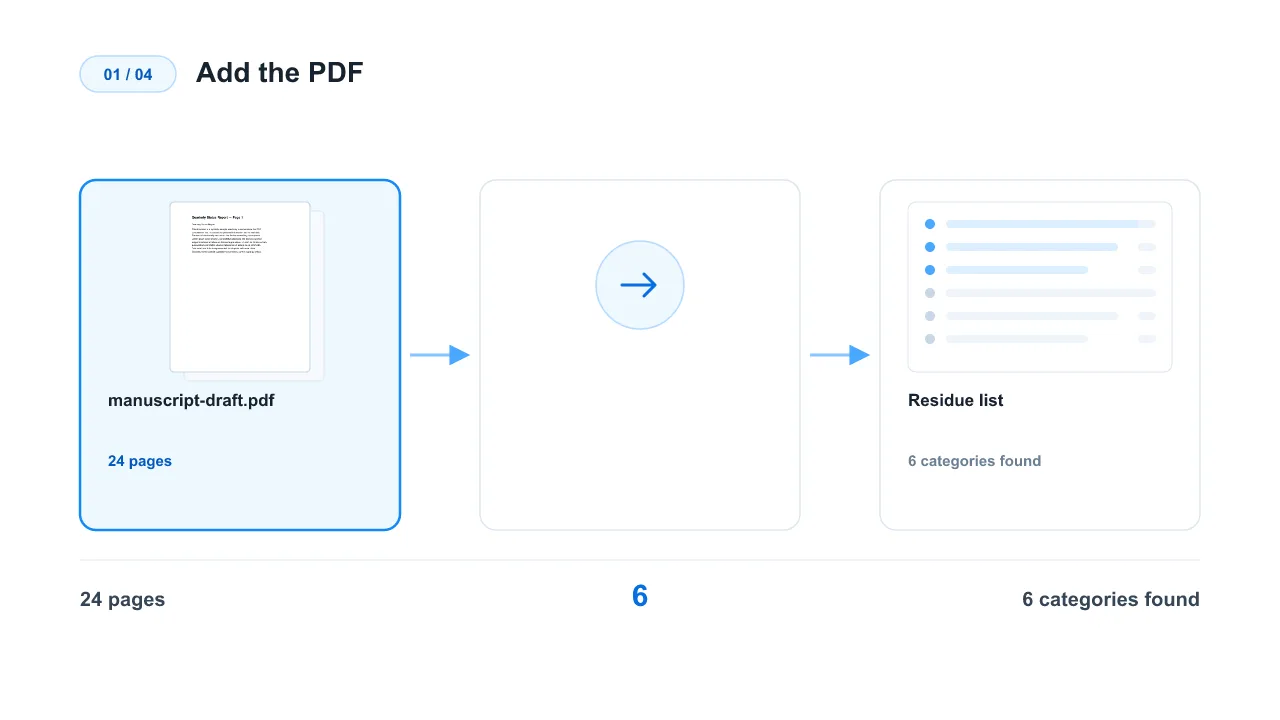
Add the PDF
Drop the file in. The check starts automatically — there is nothing to configure.
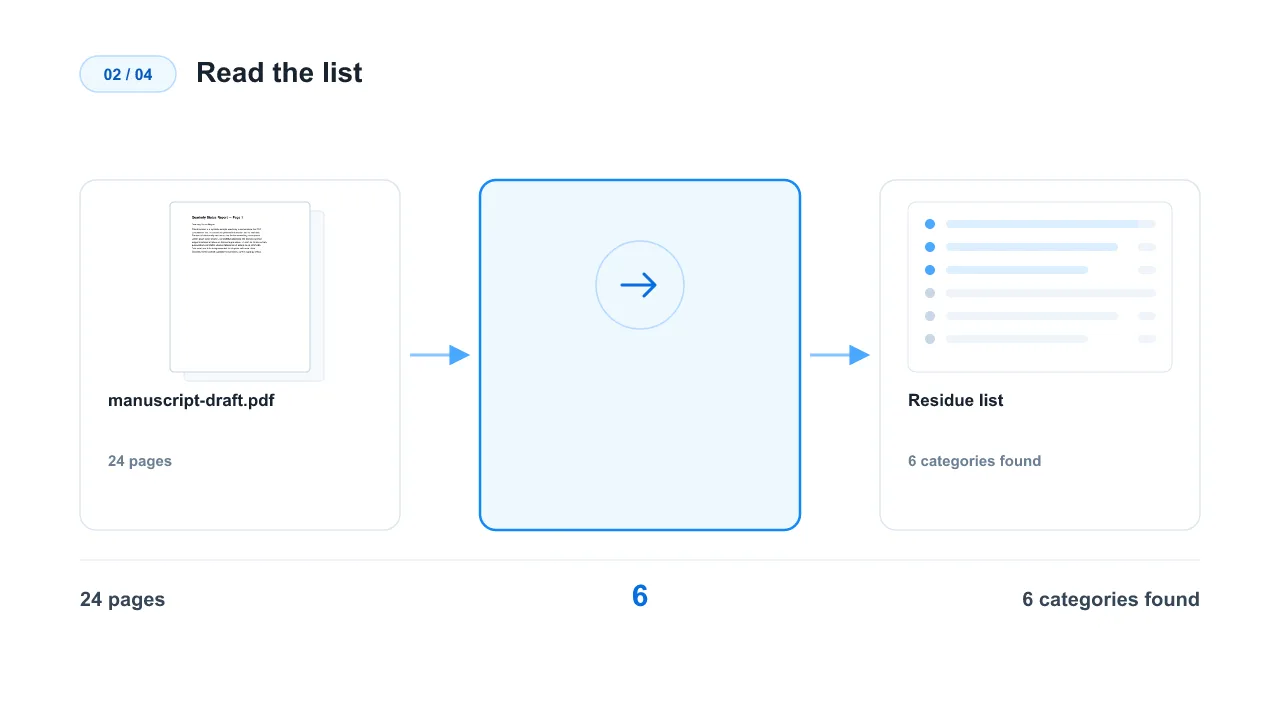
Read the list
Findings come first, clean categories below. Each line says what it is and who can see it.
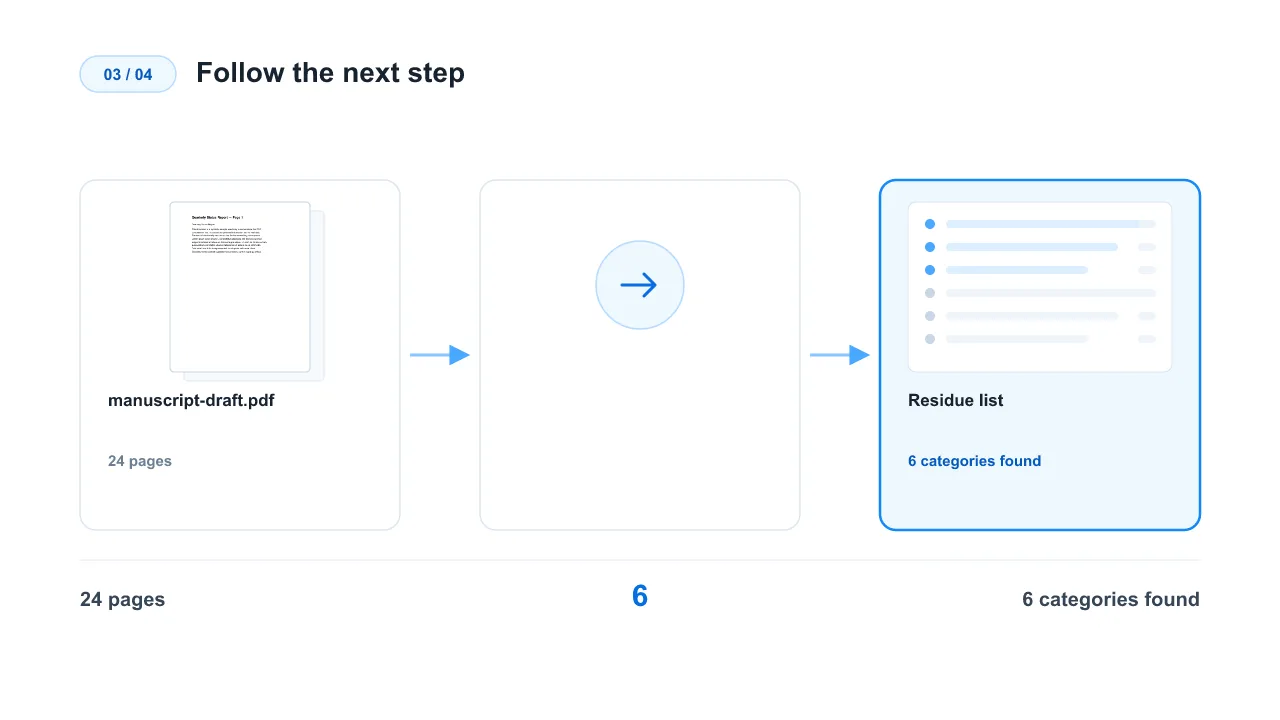
Follow the next step
Open the linked tool for anything you want removed — metadata cleanup, comment removal, link removal or flattening.
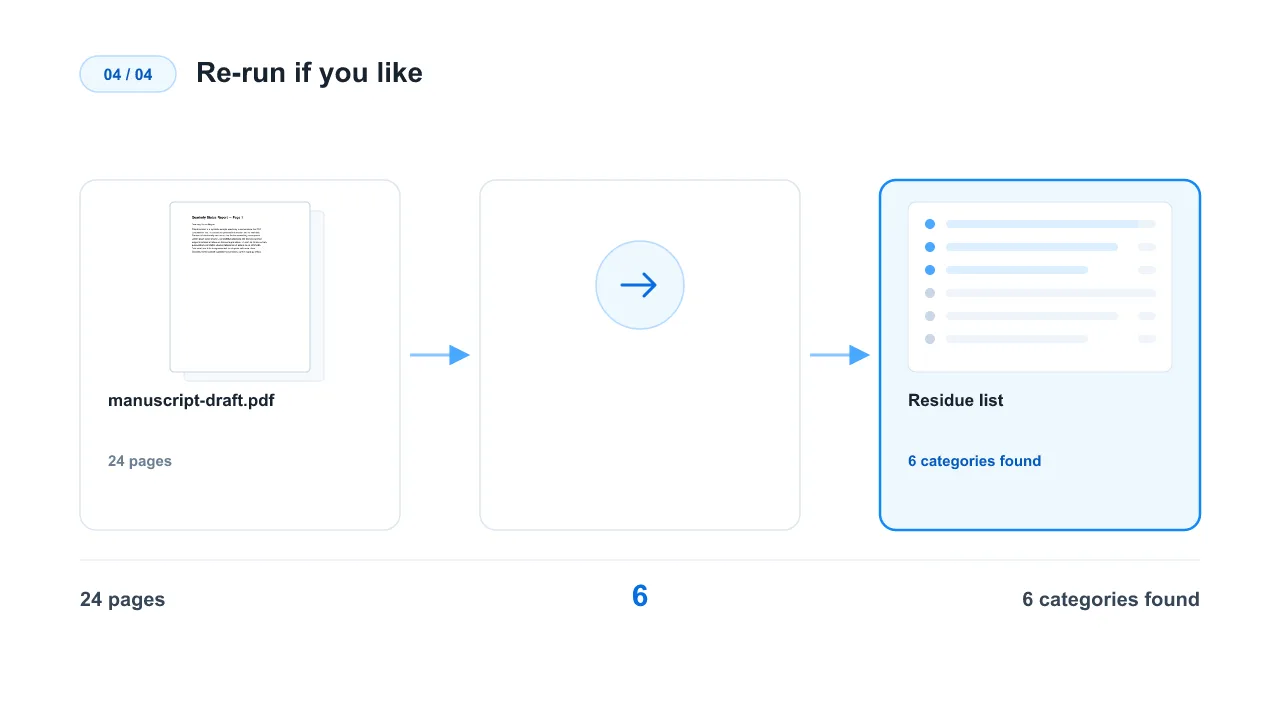
Re-run if you like
After cleaning, drop the new file in again to confirm what is left and what this check still does not cover.
How to Check a PDF Before You Send It
How to Check a PDF Before You Send It
A PDF carries more than the pages you see. Document properties, reviewer comments, links, embedded scripts, attachments and the fonts it did or did not embed all travel with the file — and most of them survive copying, renaming and exporting. Inspecting a PDF means listing that baggage before someone else reads it.
Quick Answer
Add the PDF and read the list. Anything found is shown with what it is, who can see it and which tool removes it. Nothing is changed and no new file is produced.
What a PDF Can Carry
- Document properties: title, author, subject, creator, producer and dates — often including the name of the person who wrote it.
- Local file paths: directories from the machine that produced the file, which can reveal a username.
- A second metadata copy: the XMP stream, which most viewers read in preference to the Info dictionary.
- Comments and highlights: usually carrying reviewer names and dates.
- Links and form values: external addresses, mail links, and anything typed into a form.
- Scripts, attachments and fonts: embedded JavaScript, files inside the PDF, and fonts that were never embedded.
Why Cleaning Only the Visible Metadata Is Not Enough
Many tools clear the Info dictionary and stop there. The XMP stream is a second copy that readers prefer, the document ID still links copies of the file together, and comments live in their own objects entirely. A check that looks at all of them is the only way to know what is actually gone.
Read-Only by Design
An inspection that modifies your file is not an inspection. This page reads only: no new PDF is produced, and the original is never touched. Fixing is a separate step, done by the tool that owns that job.
What This Check Does Not Cover
Three things are outside its scope today: black rectangles that never removed the underlying text, hidden optional-content layers, and image resolution. They are reported as not covered instead of being reported as clean, because a gap that looks like a pass is worse than a gap that is stated.
After the Check
Follow the link next to each finding — metadata cleanup, comment removal, link removal, flattening or redaction — then drop the result back in to see what is left. For a file going to an AI service, run the same check first and remove anything the model does not need.