 MinoPDF
Redact PDF Online
Permanently remove sensitive text, images and page areas from a PDF in your browser. Mark regions by hand or search for repeated terms, apply irreversible redactions, and download a verified copy.
Runs in your browser
Files are never uploaded — they stay on your device.
No page limit
Any document size, no per-page caps or quotas.
No watermarks
Clean output with no branding added.
No sign-up
Just open the tool and use it — no email, no account.
How to verify
Verify in 3 steps
No promises to take on faith — check it yourself in about 30 seconds.
- 1Open DevTools → Network tab
- 2Add a file and run the tool
- 3Confirm: no request carries your file
Once the page has loaded you can also unplug the network — every tool keeps working.
Full method & limitsKey Features
Draw Redaction Areas
Drag a box over any text, image, signature or table cell. Marks can be moved, resized, deleted or undone until you apply them.
Search and Mark Every Match
Enter a name, number or phrase and mark every occurrence across the document at once — instead of hunting for it page by page.
Permanent, Not a Black Box
Marked pages are rebuilt from pixels: the marked areas are burned into the image and the original text layer is never written into the new file.
Verification Report
Every export comes with a report listing which pages were redacted, which pages still have a text layer, and which pages were skipped.
Optional Metadata Cleanup
Clear author, title, producer, dates and the XMP stream in the same pass, so the file itself stops naming you.
Untouched Pages Stay Intact
Pages you did not mark are copied as they are — text stays selectable, searchable, and links and annotations are preserved.
No Upload at All
Redaction runs in your browser. There is no endpoint that receives your file, and the exported report contains counts and page numbers only — never the text you removed.
See How the File Changes
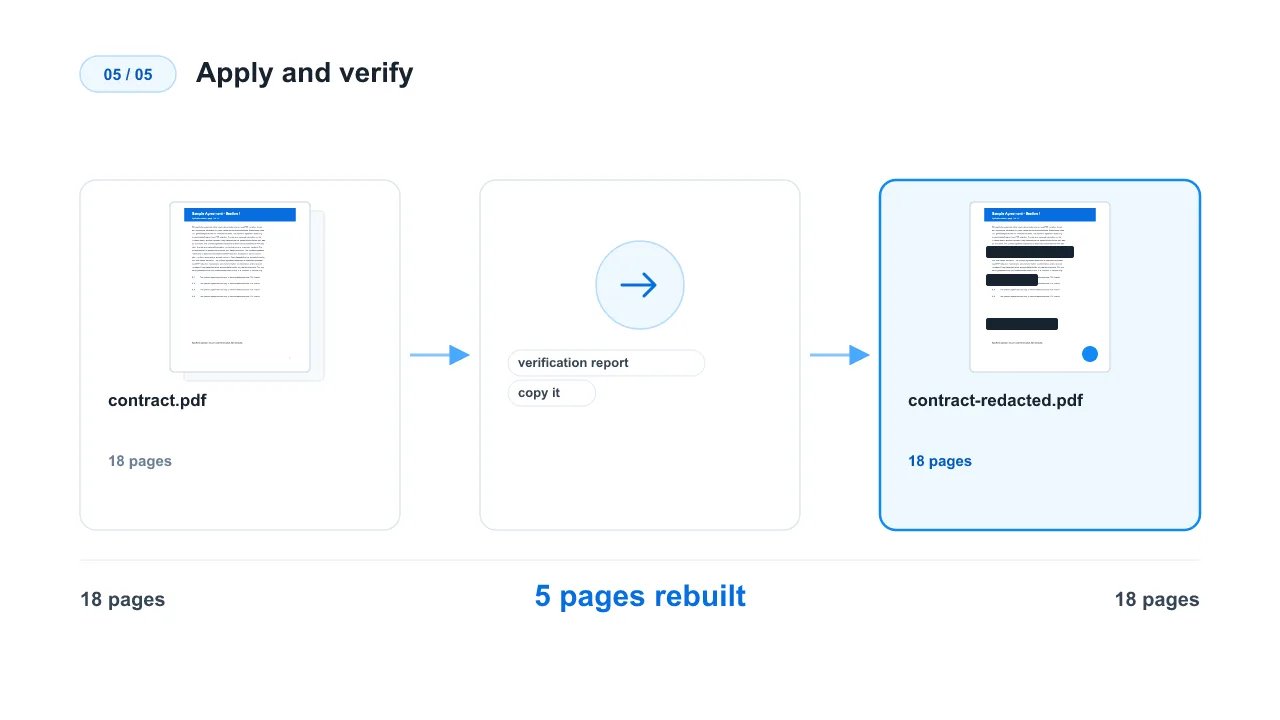
An 18-page signed contract is going to an outside reviewer: the client name appears 14 times, two account numbers sit in the payment section, and the last two pages carry signatures. After marking and applying, pages 1, 4, 9, 17 and 18 are rebuilt from pixels while the other 13 pages are copied unchanged. The verification report lists exactly which pages were rebuilt and confirms that no text layer remains on them — the removed content is gone from the file, not covered by a black box.
How to Use
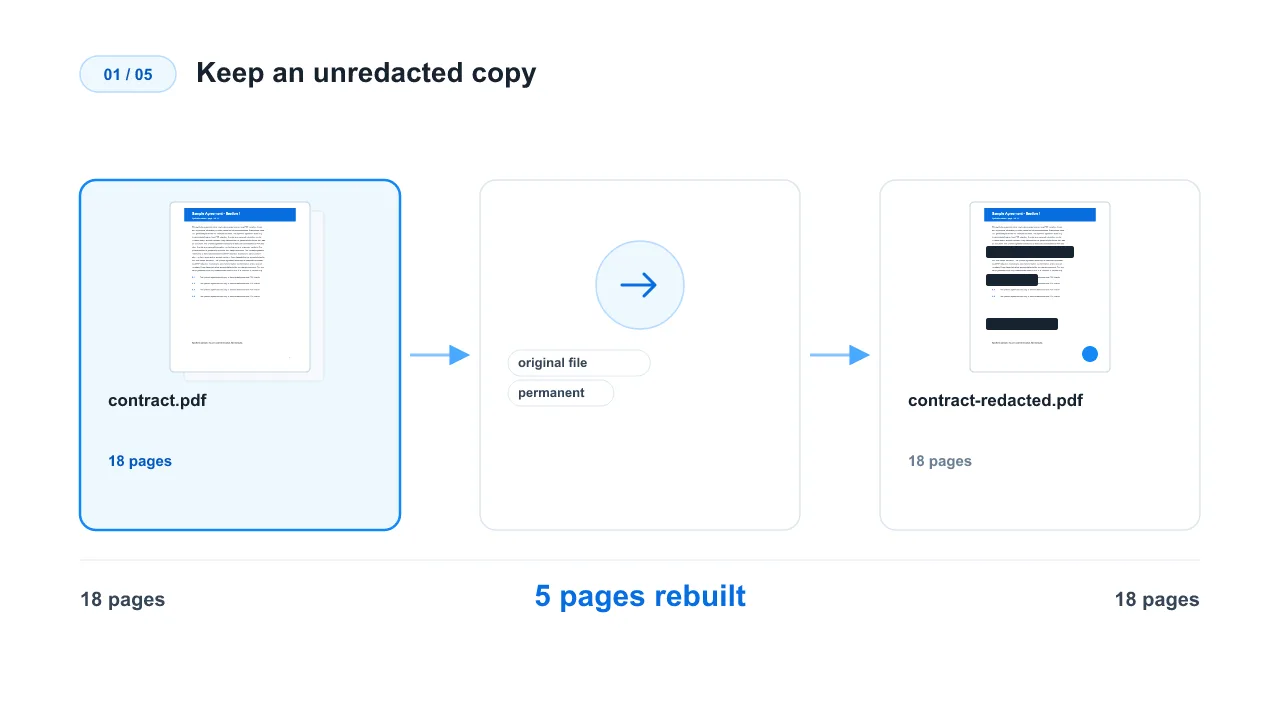
Keep an unredacted copy
Save the original file somewhere safe first. Applied redactions are meant to be permanent, so this should not be your only copy.
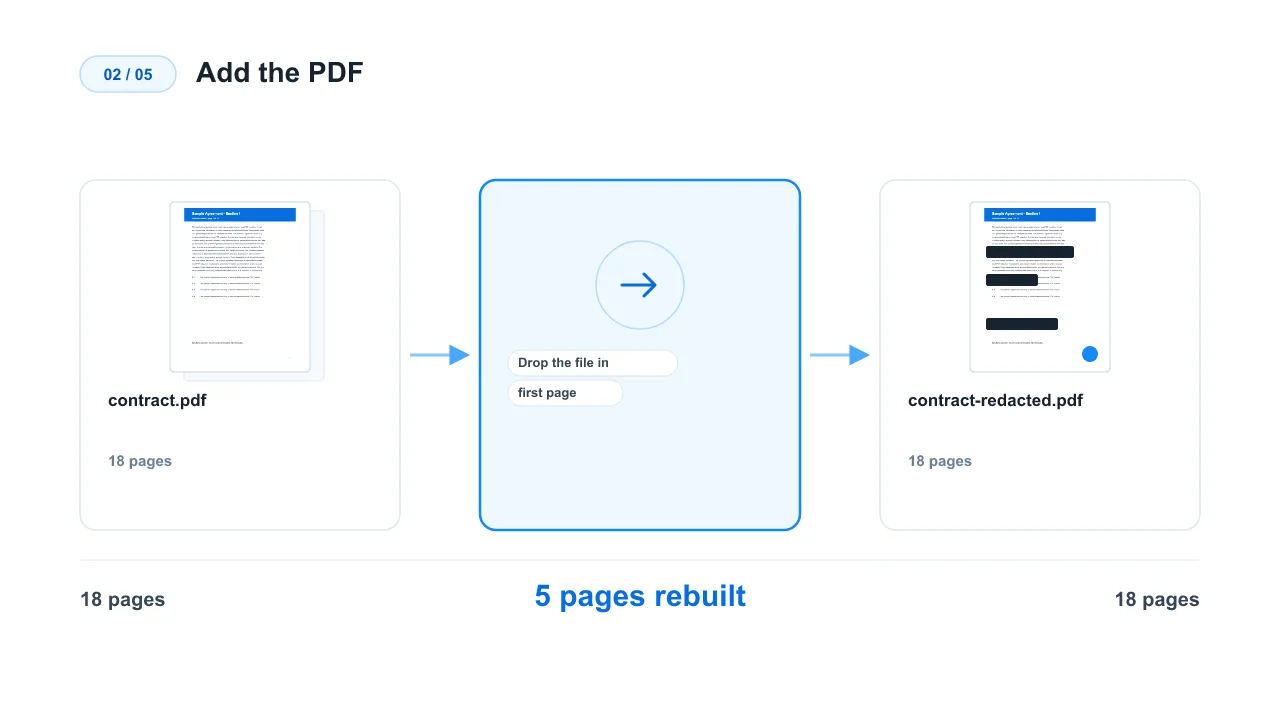
Add the PDF
Drop the file in or pick one from your device. The first page renders immediately and nothing is sent anywhere.
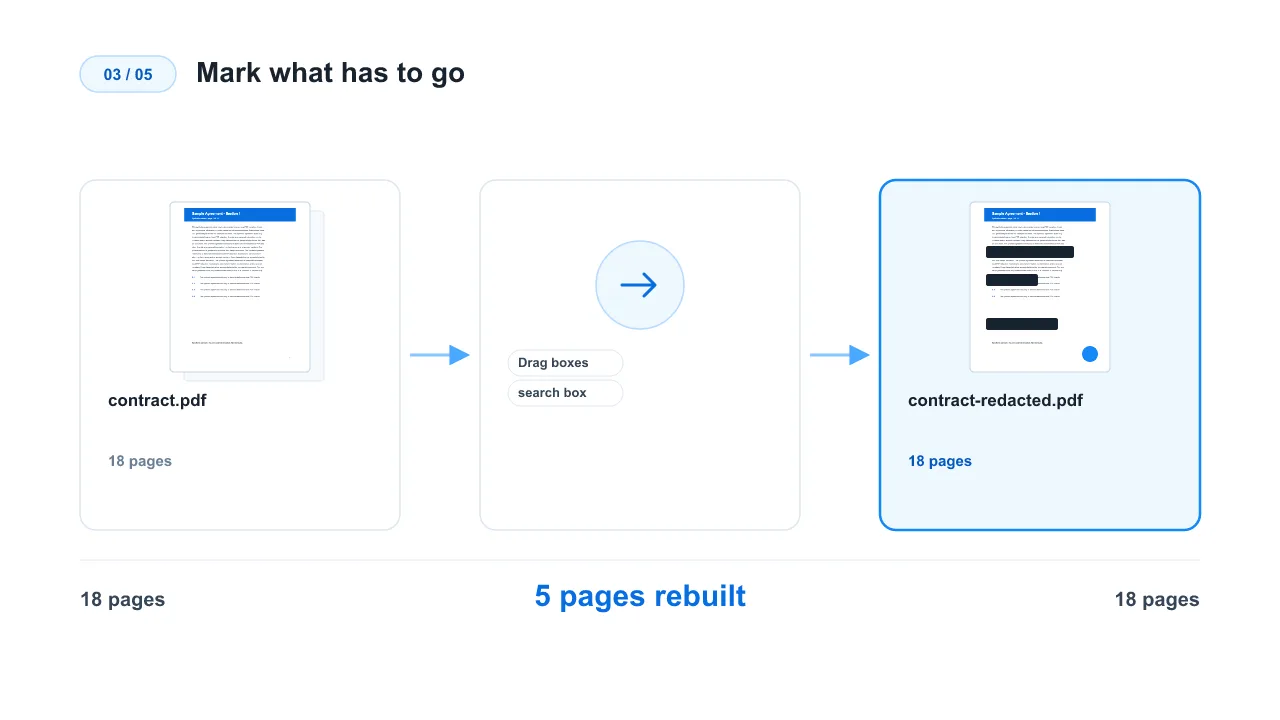
Mark what has to go
Drag boxes over sensitive areas, or type a term into the search box and mark every match at once. Move, resize or delete marks freely — nothing has changed the document yet.
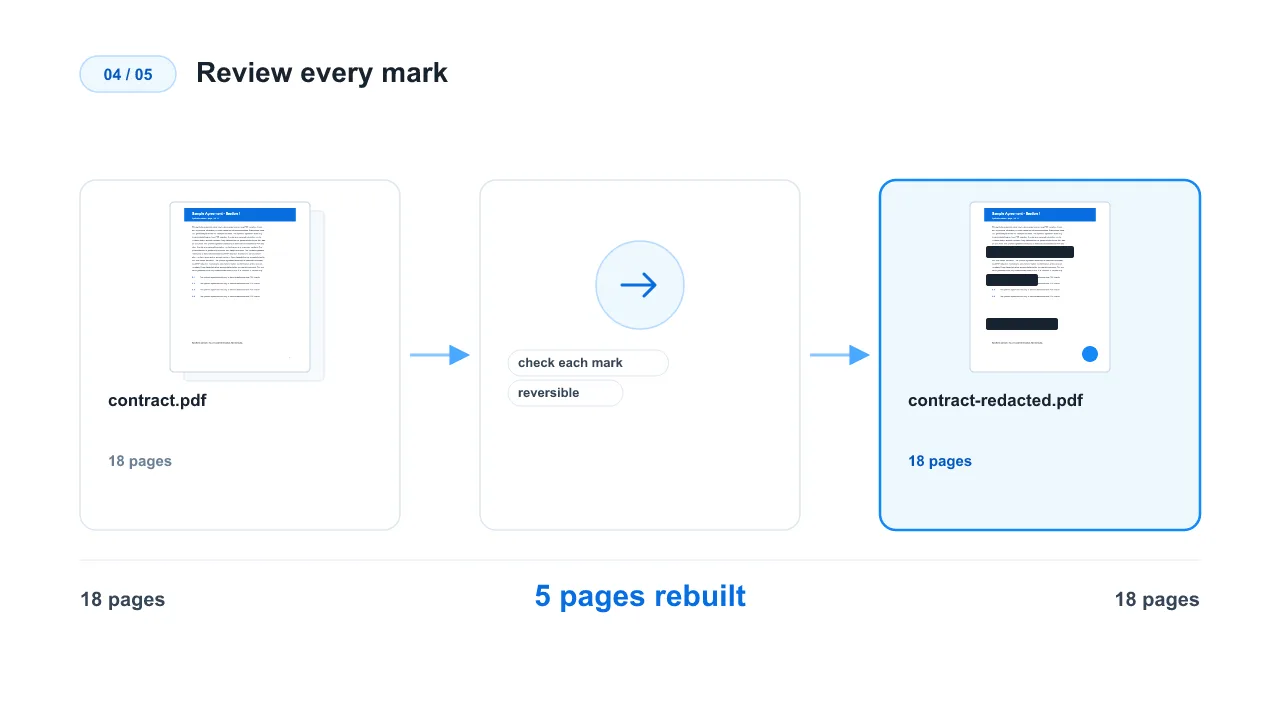
Review every mark
Page through the document and check each mark. Marks are reversible at this stage; after applying, they are not.
Apply and verify
Apply the redactions and download the new PDF together with its verification report. Search the result for the removed term, try to copy it, and open it in another viewer to confirm.
How to Redact a PDF
How to Redact a PDF
Redacting a PDF means permanently removing sensitive information from the document, not merely drawing a black box over it. Upload the PDF, mark the text or areas that must go, review the marks, apply them, and download a new PDF together with a verification report.
Quick Answer
Add a PDF, drag boxes over sensitive content or search for a repeated term and mark every match, review the marks, then apply them. Marked pages are rebuilt from pixels with the marked areas burned in, so the removed content cannot be searched, selected or extracted from the new file.
How to Redact a PDF Online
- Keep an unredacted copy of the original PDF in a safe place.
- Add the PDF — it opens in your browser and nothing is uploaded.
- Drag boxes over sensitive text, images, signatures or areas.
- Use search-and-mark when the same name, number or phrase appears more than once.
- Review every mark before applying — this is the last point where it is reversible.
- Apply the redactions and download the new PDF and its report.
- Verify: search for the removed term, try to copy it, and open the file in another viewer.
Redaction Is Not the Same as Blacking Out Text
A black rectangle placed over text may hide it while leaving the original characters underneath, which is why covered text can often still be copied out of a PDF. Redaction removes the underlying content instead. Because a browser cannot reliably rewrite a PDF content stream, this tool takes the verifiable route: pages with marks are rebuilt from pixels, so there is no text layer left under the marked areas to extract.
The Trade-off You Should Know About
Rebuilding a page from pixels removes everything in the marked areas — and it also means that page no longer has selectable, searchable text. Pages you did not mark are copied unchanged, so their text stays searchable. Mark only what has to go, and keep the original for anything you may need to search later.
What Can Be Redacted?
- Names, addresses and personal identifiers.
- Account, invoice and reference numbers.
- Signatures, logos, photographs and page regions.
- Repeated words or phrases found with search.
- Table cells, headers and footers carrying identifying details.
Review Before Applying
Redaction is intended to be irreversible in the exported file. Move, resize, delete or undo marks freely before applying: a badly placed box over a name, a number or a table cell cannot be recovered from the new PDF.
Redaction and Hidden Information
Visible content is only one part of a PDF. Metadata can still carry the author name, the creating software and local file paths; comments carry reviewer names; links, attachments, JavaScript and form values can carry more. Turn on metadata cleanup here, and use the metadata and comment tools for the rest.
How to Verify a Redacted PDF
- Search for the redacted name, number or phrase in the new file.
- Try to select and copy text from the redacted area.
- Extract the text and inspect the result.
- Open the file in another PDF viewer.
- Read the verification report: it lists the rebuilt pages and flags any page that still has extractable text.
Keep the Original File
Save the original unredacted PDF before applying redactions. Do not overwrite the only copy, and do not assume a redacted PDF can be unredacted later.