 MinoPDF
Extract Text from PDF
Extract text from text-based PDF files in your browser. Pick a page range, turn one or many PDFs into plain text you can preview, copy, search, or archive. Private, no upload.
Runs in your browser
Files are never uploaded — they stay on your device.
No page limit
Any document size, no per-page caps or quotas.
No watermarks
Clean output with no branding added.
No sign-up
Just open the tool and use it — no email, no account.
How to verify
Verify in 3 steps
No promises to take on faith — check it yourself in about 30 seconds.
- 1Open DevTools → Network tab
- 2Add a file and run the tool
- 3Confirm: no request carries your file
Once the page has loaded you can also unplug the network — every tool keeps working.
Full method & limitsKey Features
Extract Selectable Text
Read a PDF's existing text layer and turn it into a plain .txt file that you can copy, edit, search, index, or archive.
Multiple PDFs
Add several PDFs at once and get one text file per document. Download files individually or as a ZIP archive.
Choose a Page Range
Set a page range such as 1-3,5 to extract text from only the pages you need. Leave it empty to extract the entire document.
Readable Text Output
Text is reconstructed with line breaks, and you can optionally insert a blank line between source pages to make page boundaries easier to review.
Copy or Download
Preview the extracted text, copy it into another app, or download a standard .txt file that works in any text editor.
Private & Local
Extraction runs entirely in your browser using PDF.js. Your PDFs are never uploaded to any server.
See How the File Changes
How to Use
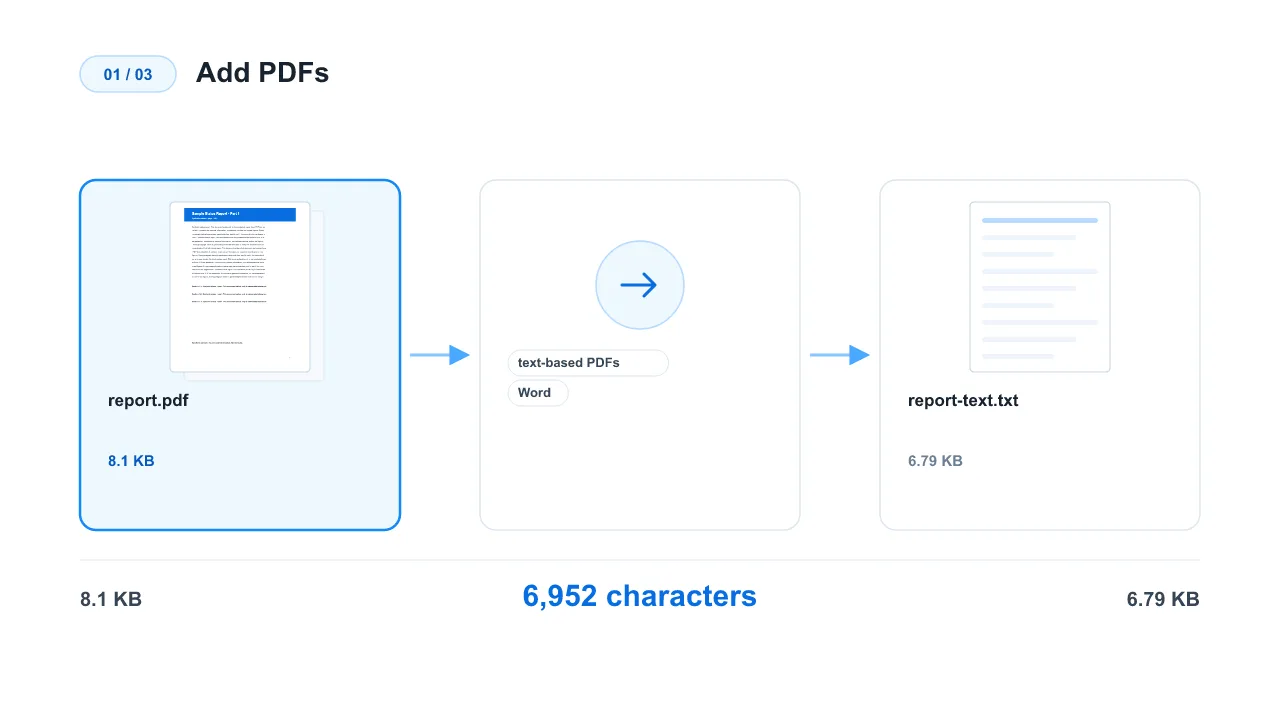
Add PDFs
Drag and drop or select one or more text-based PDFs. Files exported from Word, browsers, office tools, and digital reports usually work best.
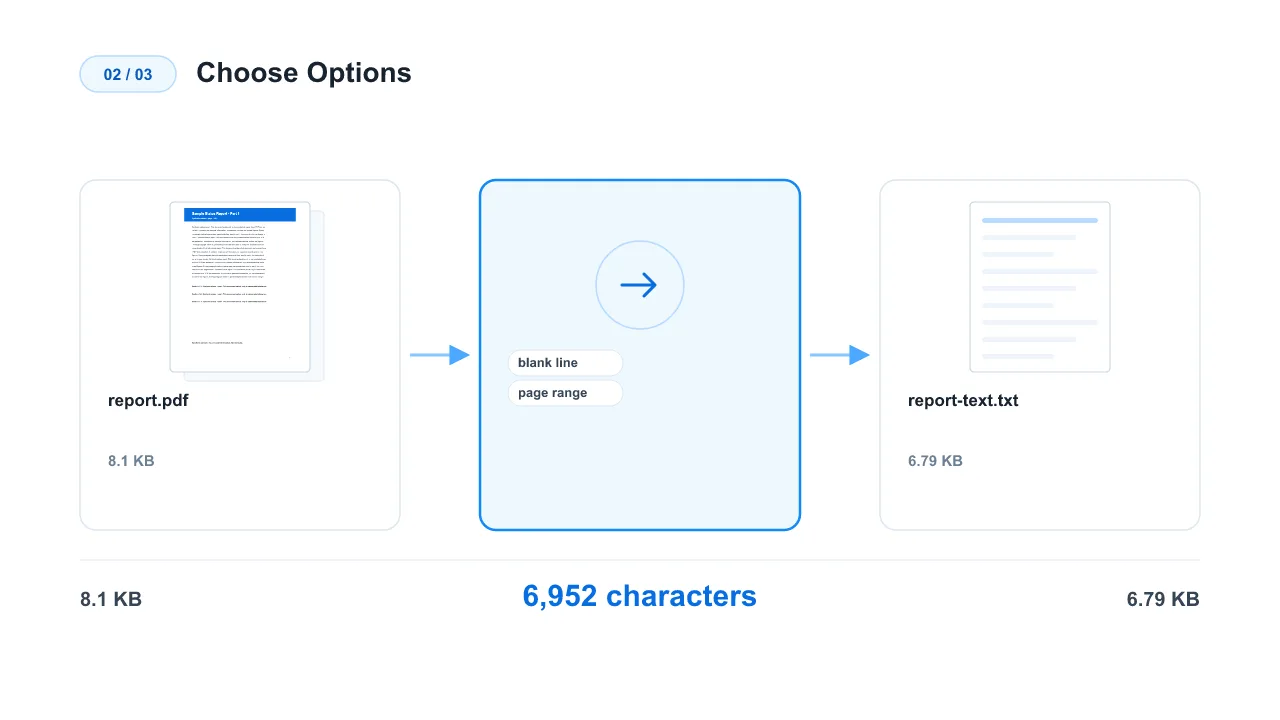
Choose Options
Decide whether to insert a blank line between pages, and optionally set a page range to extract only specific pages such as 1-3 or 1-3,5.
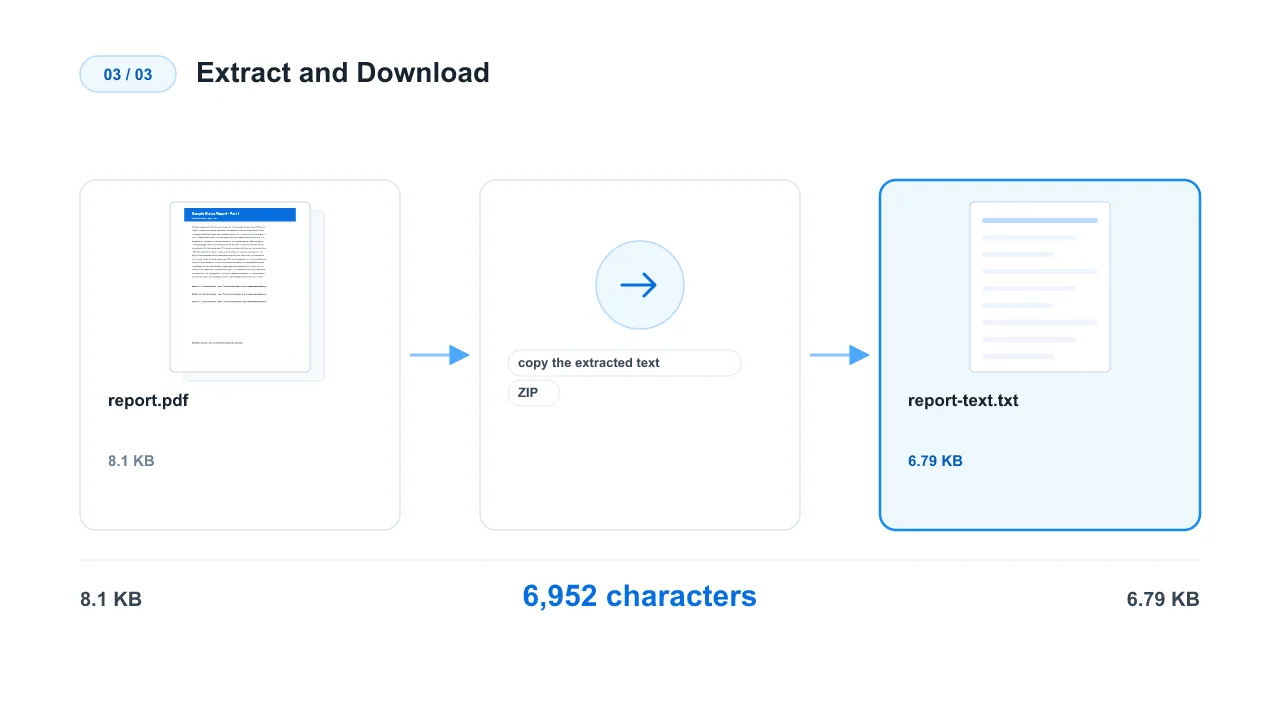
Extract and Download
Run the tool to create one .txt file per PDF, review or copy the extracted text, then download files individually or together as a ZIP. No signup and no watermark.
How to Extract Text from a PDF
Why Extract PDF Text
Plain text is easy to copy, search, edit, archive, index, and reuse in other applications. Converting a PDF to TXT turns a fixed page-based document into text that works in any editor, note-taking app, search system, or AI workflow.
Best PDFs for Text Extraction
This tool works best with text-based PDFs that contain selectable text. Typical examples include reports, articles, manuals, contracts, and documents exported from Word, office software, browsers, or similar tools. To check your PDF, try selecting a sentence in a PDF reader and pasting it into a text editor. If the result is readable text, extraction will usually work well.
How It Works
The tool reads the PDF's existing text layer page by page, reconstructs text with line breaks, and writes the result to a standard .txt file. You can optionally insert a blank line between pages to make page boundaries more visible. When you add multiple PDFs, each document produces its own TXT file.
What the TXT File Preserves
TXT is a plain-text format, so it focuses on readable words rather than page appearance:
- Selectable text: Text stored inside the PDF's text layer.
- Line breaks: Reconstructed to make the output easier to read.
- Approximate page boundaries: Optional blank lines between source pages.
- Page range: Extract only the pages you select, leaving the rest out.
- One file per PDF: Useful for batch extraction and organized archives.
What Is Not Preserved
Plain text does not keep fonts, colors, exact spacing, images, annotations, or page design. Complex layouts such as multi-column papers, tables, sidebars, footnotes, and positioned text can require cleanup after extraction. If you need structured headings, use PDF to Markdown; if you need table data, use a dedicated PDF table extraction tool.
Scanned PDF Limitation
Scanned PDFs are commonly just images of pages and do not contain a selectable text layer. In those files, there is no text to extract directly. Run OCR first to create searchable text, then use this tool to save that text as TXT. OCR output should be reviewed, especially for low-quality scans, small text, or complex page layouts.
Common Use Cases
Use PDF to TXT to:
- Copy text from reports, articles, manuals, and contracts without retyping.
- Create searchable plain-text archives from text-based PDF collections.
- Prepare document content for note-taking, translation, summarization, or AI prompts.
- Export PDF text for data processing, full-text search, and document indexing.
- Convert multiple PDFs into separate TXT files for a simple, portable archive.