
How to Save an Email as a PDF
Already have an .eml file? Convert it to a PDF in your browser — no upload, no sign-up.
To save an email as a PDF, open the message, choose Print, and select Save as PDF or Microsoft Print to PDF on Windows. Gmail, Outlook and Apple Mail use slightly different menu labels, so the exact clicks depend on where you read your mail.
If you already have an .eml or .msg file, a dedicated converter is usually more convenient than opening the file in a mail client and printing it.
Pick your path before you start:
- The email is still open in Gmail, Outlook or Apple Mail → use the client's own print or export command. The steps are below.
- You already have an
.emlfile → convert the EML file to PDF. - You already have an
.msgfile from Outlook → use the MSG to PDF converter.
Save a Gmail Email as a PDF
Save one Gmail message
- Open Gmail and open the message you want to keep.
- Near the top-right of the message, click More.
- Choose Print.
- In the print dialog, set the destination to Save as PDF.
- Adjust pages, layout or margins if you need to.
- Click Save, then choose a folder and file name.
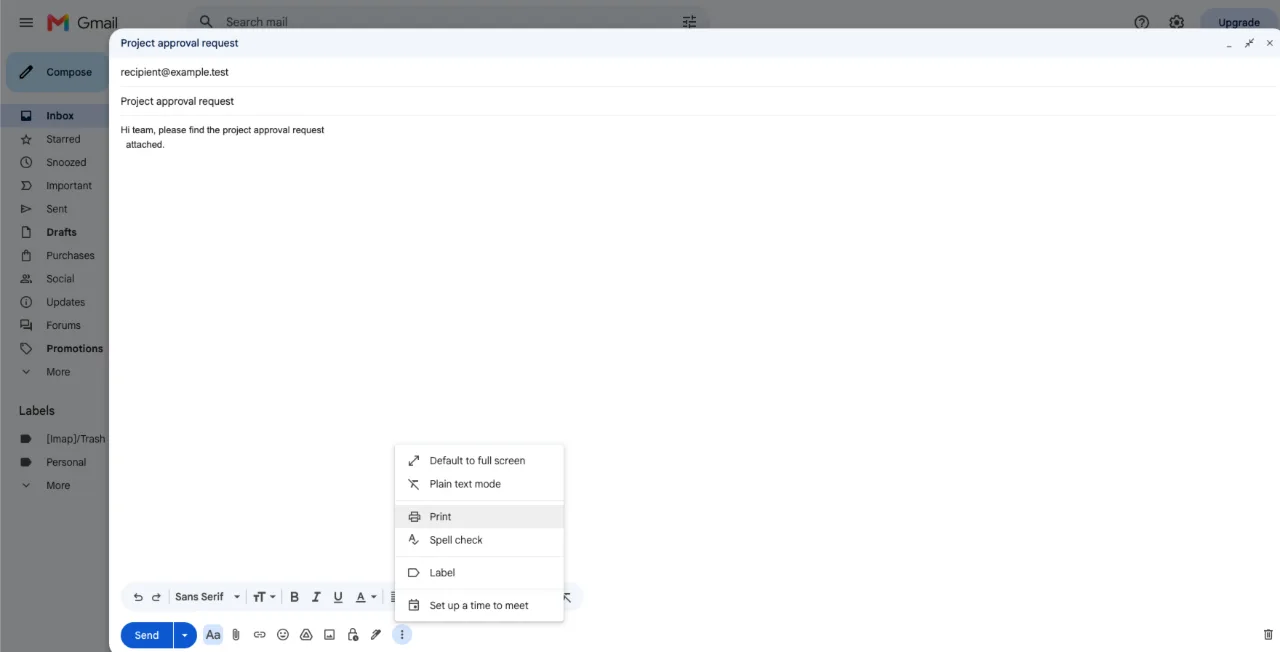
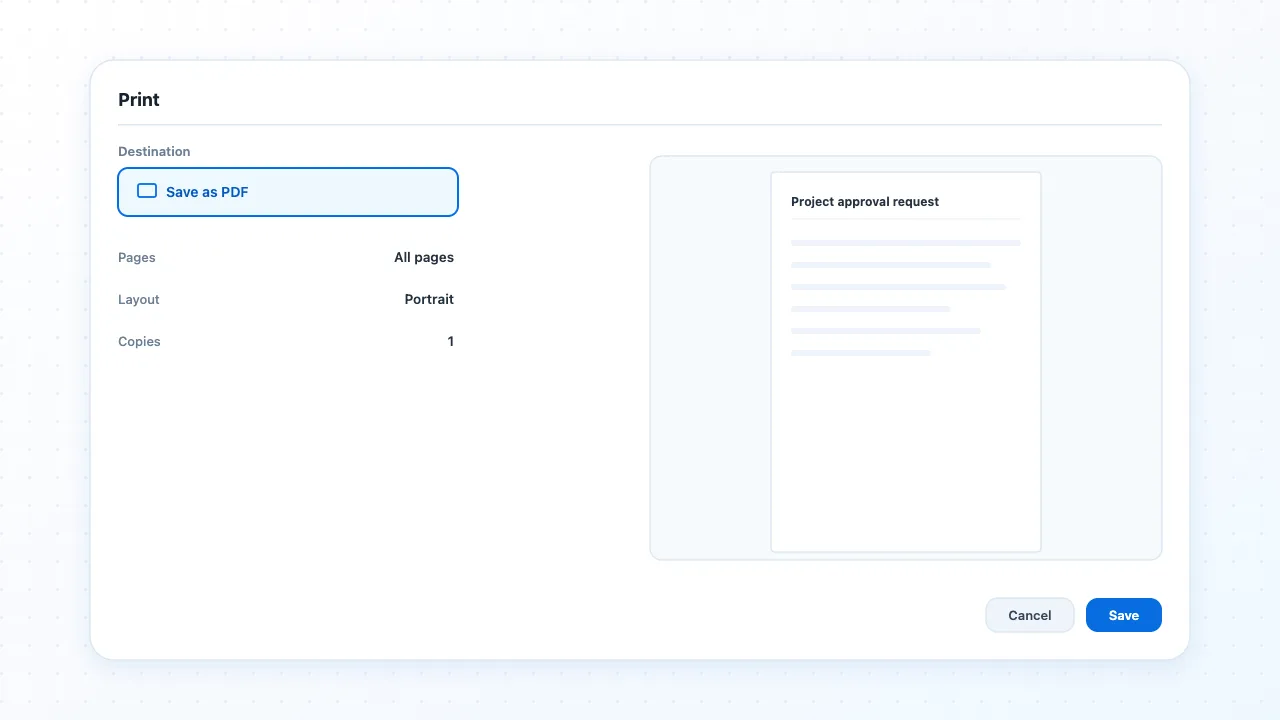
Google's own instructions separate printing a single message from printing a whole conversation, so it is worth knowing which one you are about to produce.
Save an entire Gmail conversation
- Open the conversation.
- Click Print all near the top-right.
- Choose Save as PDF in the print dialog.
- Click Save and pick where to store the file.
Print covers the message you are looking at. Print all covers every reply in the thread. On a long thread that difference matters: choosing the wrong one gives you a PDF that is either missing replies or far longer than you intended.
Gmail limitations
Gmail confidential mode can disable printing, copying, downloading and forwarding for the message text and its attachments. If printing is unavailable, first check whether the sender used confidential mode or whether the message is being opened in a restricted view — a blank or broken printout can also come from the browser, an extension or a print stylesheet.
Save an Outlook Email as a PDF
There is no single Outlook procedure. New Outlook, classic Outlook for Windows, Outlook on the web and Outlook for Mac place the command differently. In the Outlook versions covered by Microsoft's instructions, PDF is not generally available as a standard Save as file type; printing to a PDF destination is the usual workaround on Windows.
New Outlook for Windows
- Open the message.
- Select More actions.
- Choose Print, then choose Print again if a second print screen appears.
- In the printer list, select Microsoft Print to PDF.
- Click Print.
- In Save Print Output As, choose a folder and enter a file name.
- Click Save.
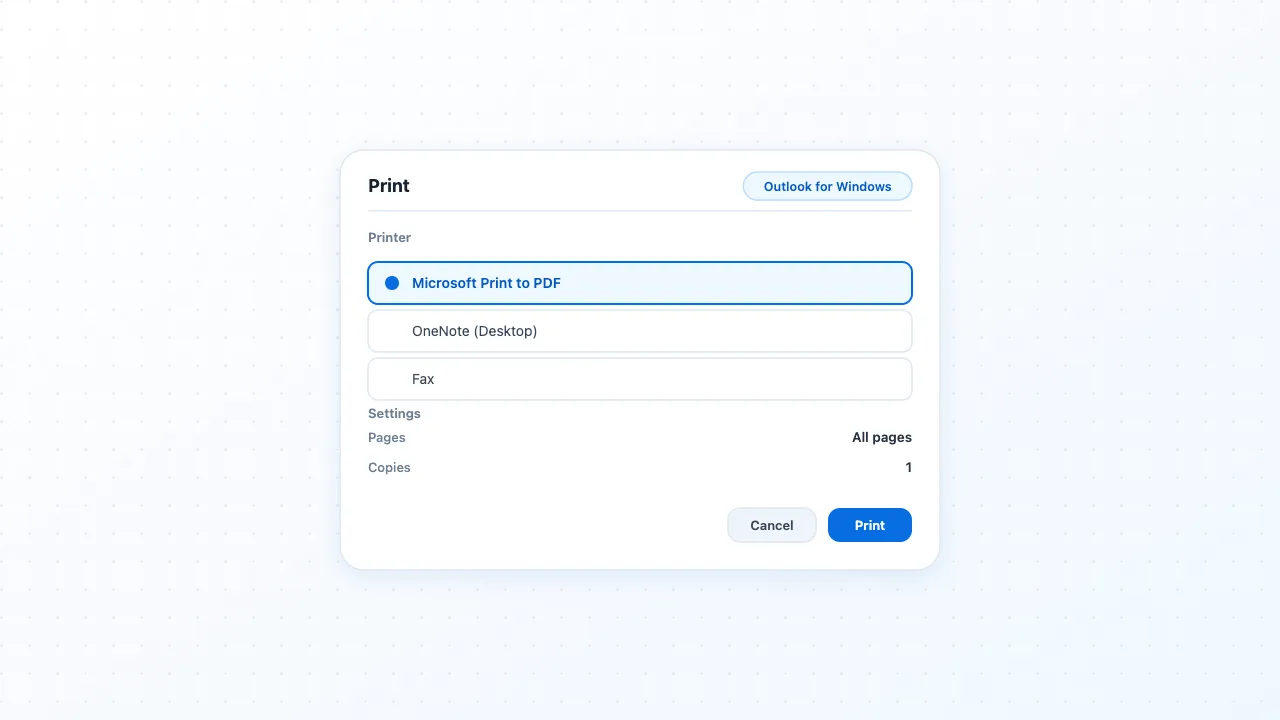
Outlook on the web
- Open the message.
- Select More actions.
- Choose Print.
- In the browser's print dialog, choose Save as PDF or Microsoft Print to PDF, depending on your operating system.
- Save the file.
What you see here depends on your browser and operating system, so treat the destination name above as a description rather than a fixed label.
Classic Outlook for Windows
- Open the message.
- Select File.
- Choose Print.
- Select Microsoft Print to PDF from the printer list.
- Click Print.
- Choose a folder and file name, then click Save.
Outlook limitations
- Menu names move between versions, so treat the labels above as a starting point rather than a guarantee.
- Save As does not necessarily list PDF. Printing to Microsoft Print to PDF is the dependable option on Windows.
- Saving messages one at a time is fine for a handful of emails. For hundreds of messages, export them into a supported email-file format such as EML first, then use a batch conversion workflow.
Save an Apple Mail Email as a PDF
Export as PDF on Mac
- Open Mail on your Mac.
- Select a message, several messages, or a conversation.
- Choose File from the menu bar.
- Select Export as PDF.
- Choose a file name and location, then save.
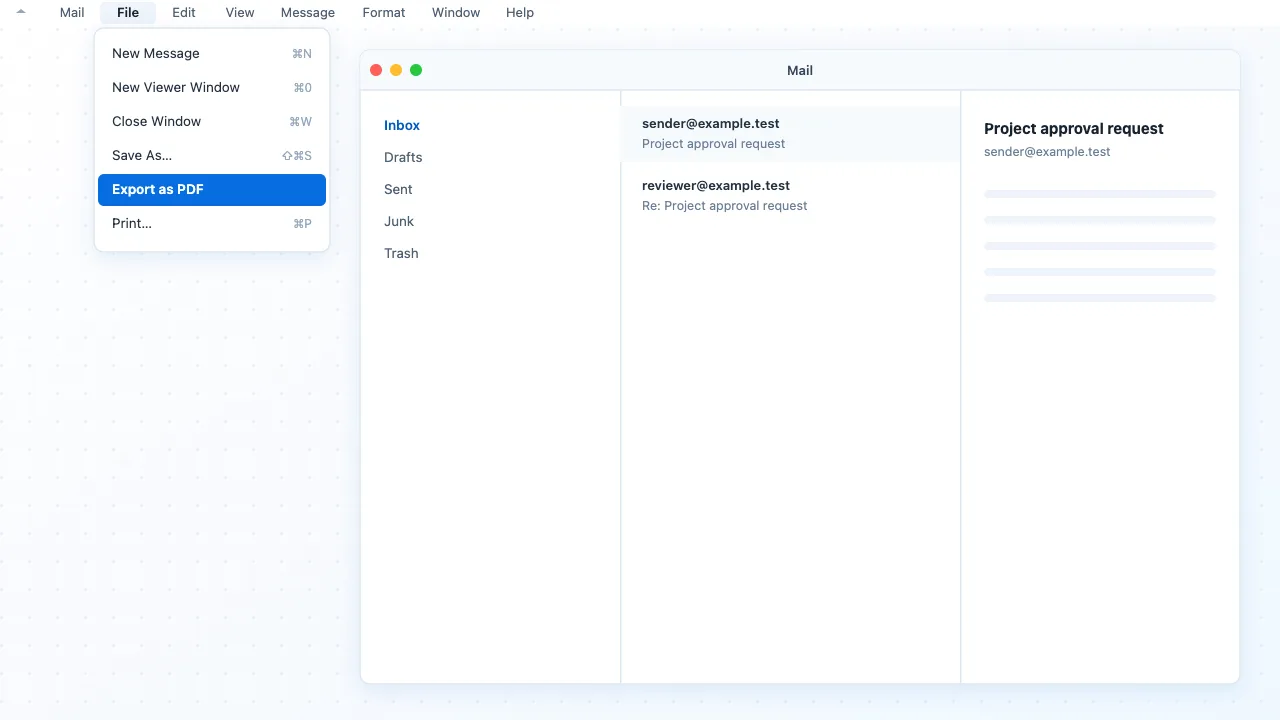
If you select more than one message, open the resulting PDF before you send it anywhere — depending on the selection it contains more than one email.
Alternative method: the print dialog
Some macOS versions do not show Export as PDF. In that case use the system print dialog:
- Select the message.
- Choose File → Print.
- Open the PDF menu in the print dialog.
- Select Save as PDF.
When to save the raw message instead
To keep the original message rather than a rendered document, use Mail's file-saving options or drag the message to a folder or the desktop. Depending on the method and macOS version, Mail may save it as an .eml file, which you can later convert to PDF without opening a mail client.
As a rule of thumb: save the message as an EML file when you need the original email structure for later processing; use a PDF when you mainly need a shareable, readable document.
Convert an EML File to PDF
An .eml file is a saved email message that can contain headers, text, HTML content, inline images and attachments. You can open one in a mail client and print it, but converting it directly is usually faster — especially when you have more than one message.
Open the EML to PDF converter and the conversion runs in your browser: the MIME structure is parsed on your device, the PDF is laid out and written there, and the file is not uploaded as part of this conversion.
One thing to expect before you start: the result is a document rendering of the email, not a pixel-perfect copy of Gmail, Outlook or Apple Mail. Structure and emphasis survive; the original web design usually does not.
Convert one EML file
- Open the EML to PDF tool.
- Drag in or select your
.emlfile. - Set the output options you need: Page size, Orientation, Font size (pt), Margin (pt), and the Include email headers, Include attachment list, Include inline images and Include image attachments (PNG/JPEG) switches. The first three switches are on by default; image attachments are off.
- Run the conversion.
- Review the result and download the PDF.
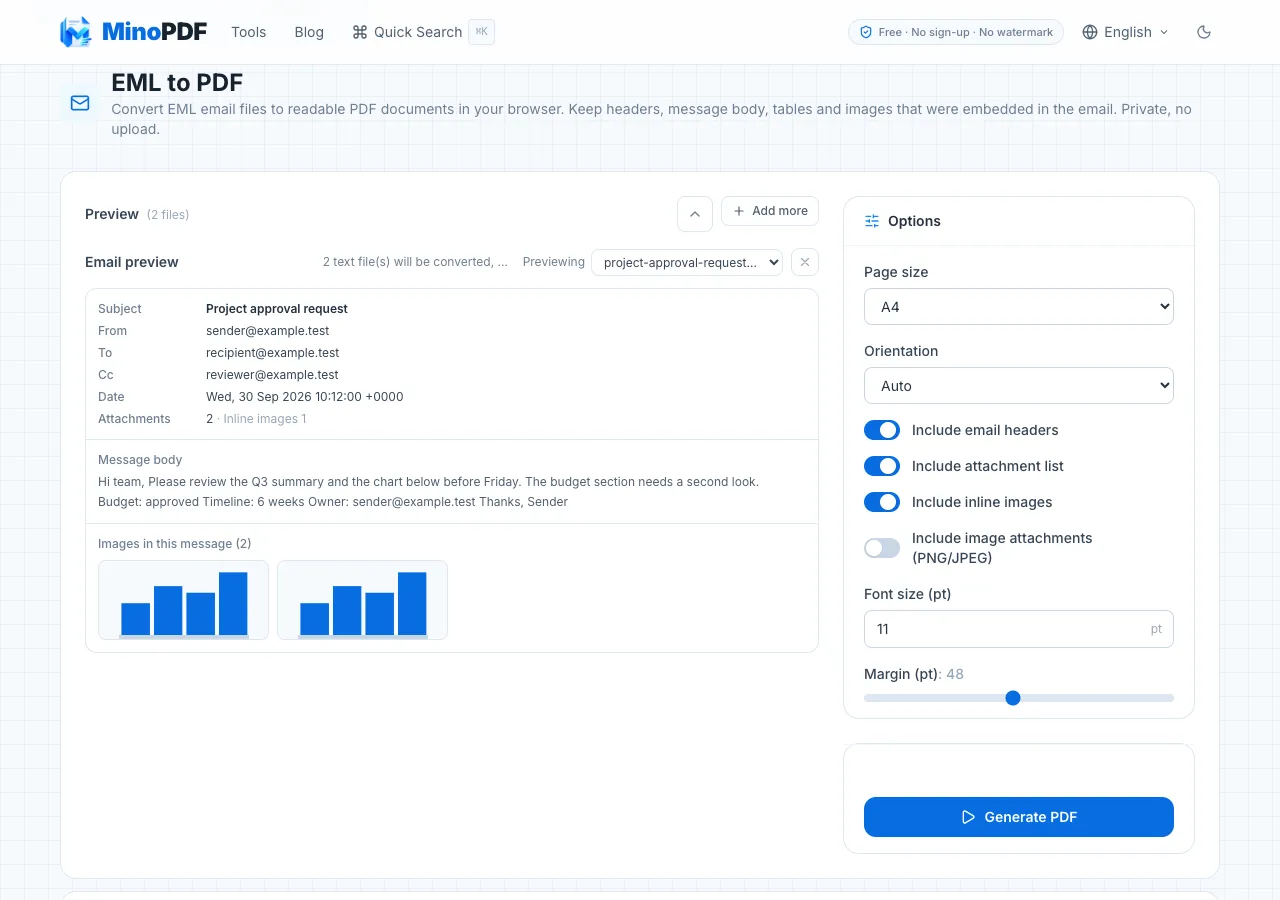
.eml files, set the output options, then run the conversion.Convert multiple EML files
- Select several
.emlfiles at once — exported from Gmail Takeout, Thunderbird, Apple Mail or another mail client. - Run the conversion.
- Download each PDF individually, or download all of them together as a ZIP archive.
The output rule is simple:
one .eml file → one PDF file
several .eml files → several PDF files, downloadable one by one or as a ZIP
What the PDF contains
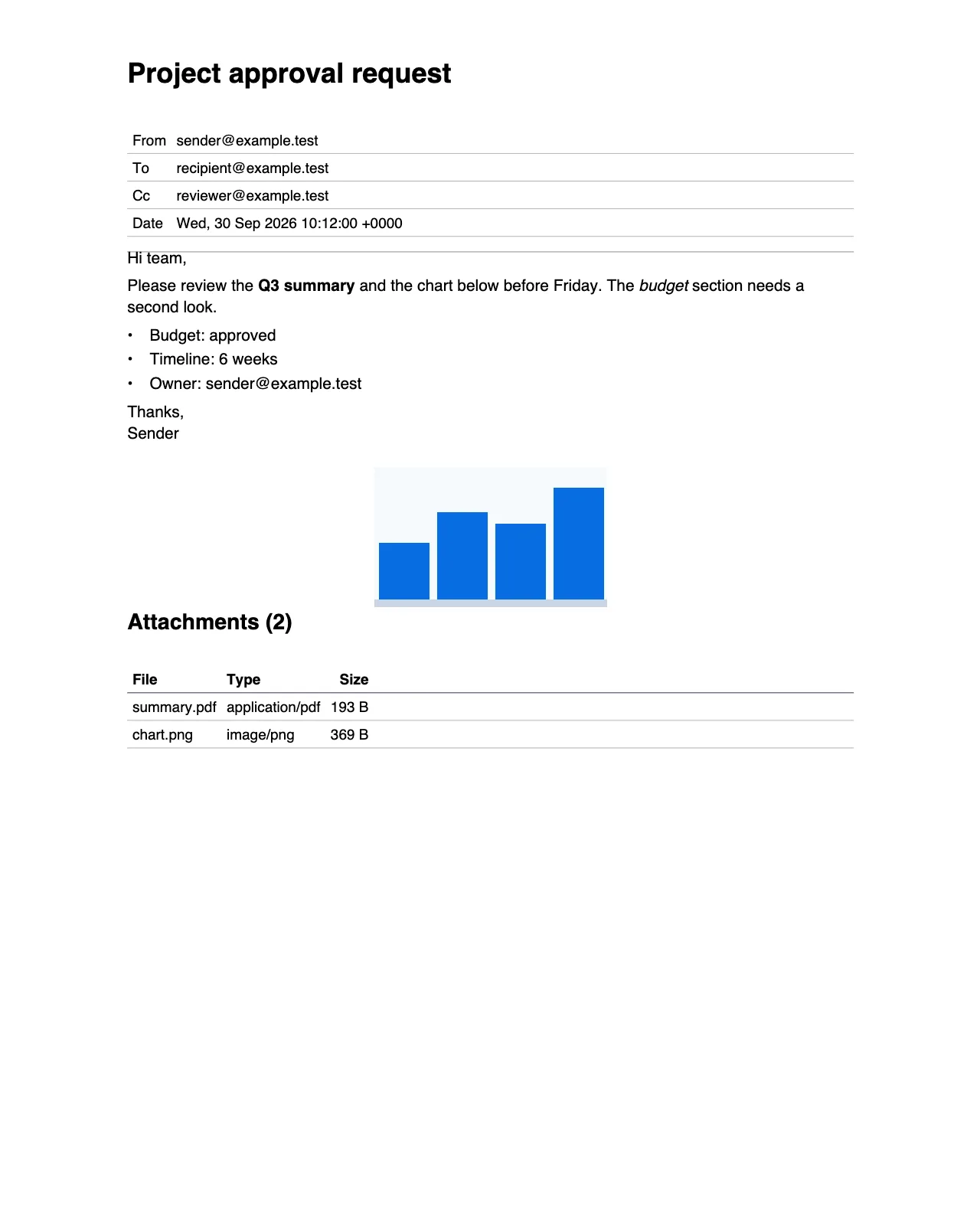
Email headers. Subject, From, To, Cc, Bcc and Date are placed at the top of the document. The subject is also written into the PDF's Title field and the sender's address into its Author field, which makes the file easier to find later.
Message body. Headings, paragraphs, lists, tables, quotes, links, bold text, italic text and inline code from the email's HTML are rendered as document content.
Embedded images. PNG and JPEG images carried inside the message — the ones referenced by cid: or inlined as data: URIs — are drawn into the PDF, so logos, inline screenshots and charts come along.
Remote images are never fetched. During EML conversion the renderer does not fetch remote image URLs, so externally hosted tracking pixels are not requested by this process. That is a narrower claim than "all tracking is removed": tracking can also happen through links and redirects. This statement covers the conversion itself, not other browser activity such as opening a link afterwards.
Attachments. Each attachment is listed with its name, type and size. Attachment contents stay out of the PDF unless you switch on Include image attachments (PNG/JPEG); when you do, supported PNG and JPEG attachments are drawn in at the end of the document under their own heading. Other formats — GIF, WebP, TIFF and similar — cannot be laid into the PDF and remain listed only.
Listing an attachment is not the same as embedding it. If you need the original attachment files, keep the source email or download them separately.
EML Conversion Limitations
- MSG files are not supported here.
.emland.msgare different formats. For Outlook.msgfiles use the MSG to PDF converter. - Encrypted or password-protected messages are not supported. The converter does not decrypt protected email content or attachments.
- No PDF/A. The output is a standard PDF, not a PDF/A archival file. If a submission or compliance workflow requires PDF/A conformance, use a tool built for that.
- Complex web layout is simplified. Background images, absolute positioning, web fonts and inline styles are not reproduced; they are reduced to readable content.
- Scripts and interactive elements are skipped.
script,style,form,iframe, embedded audio and video, and similar nodes are not carried into the PDF.
Which Method Should You Use?
| Your situation | Best method |
|---|---|
| The message is open in Gmail | Gmail → Print (or Print all) → Save as PDF |
| The message is open in Outlook on Windows | Outlook → Print → Microsoft Print to PDF |
| The message is open in Outlook on the web | More actions → Print, then your browser's Save as PDF destination |
| The message is open in Apple Mail | File → Export as PDF, or File → Print → Save as PDF |
You already have an .eml file | EML to PDF |
You have many .eml files | Batch EML to PDF, then download individually or as a ZIP |
You have an .msg file | MSG to PDF |
| You need PDF/A | A PDF/A-specific conversion workflow |
Use the mail client's own PDF option while the message is still open — it is the fastest route and costs nothing. Switch to a file converter once the email has been downloaded, or when you need to process more than a couple of messages.
Frequently Asked Questions
Can I save an email as a PDF without installing software?
Yes. Gmail, Apple Mail and Windows all ship with a print or PDF export path, and Outlook on Windows can use the built-in Microsoft Print to PDF printer.
Can I save an entire Gmail conversation as one PDF?
Yes. Open the conversation and choose Print all instead of printing only the current message.
Does EML to PDF keep the subject and sender?
Yes. Subject, From, To, Cc, Bcc and Date are placed at the top of the document, and the subject and sender's address are written into the PDF's Title and Author fields.
Are images in the email included?
PNG and JPEG images embedded in the message — referenced by cid: or inlined as data: URIs — are drawn into the PDF.
Does the converter download remote images?
No. Remote image URLs are not fetched during EML conversion, which means externally hosted tracking pixels are not requested by this process.
Are attachments embedded in the PDF?
Not by default. Each attachment is listed with its name, type and size. PNG and JPEG image attachments are drawn in only when you switch on Include image attachments (PNG/JPEG); other formats stay listed only.
Can I convert a MSG file with the EML tool?
No. The EML page reads .eml files only. Use the MSG to PDF converter for .msg files.
Can I convert several EML files at once?
Yes. Each .eml file becomes its own PDF, and you can download them one by one or all together as a ZIP archive.
Does the tool produce PDF/A?
No. It produces a standard PDF. If your archive or submission requires PDF/A, you need a converter that targets that standard.
Is my email uploaded anywhere?
No. The EML file is parsed and rendered locally in your browser, and the file is not uploaded as part of this conversion. Check the processing notice shown on the tool before converting sensitive email.
Related Tools
- EML to PDF — one PDF per email, or all of them as a ZIP.
- MSG to PDF — the counterpart tool for Outlook
.msgfiles. - TXT to PDF — turn pasted or uploaded plain text into a clean, selectable PDF.
Have a question or feedback? Contact us