 MinoPDF
PDF to EPUB
Convert a PDF into an EPUB e-book in your browser. Choose fixed layout (pages as images) or reflowable text, set the title and author, and download a single EPUB. Private, no upload.
Runs in your browser
Files are never uploaded — they stay on your device.
No page limit
Any document size, no per-page caps or quotas.
No watermarks
Clean output with no branding added.
No sign-up
Just open the tool and use it — no email, no account.
How to verify
Verify in 3 steps
No promises to take on faith — check it yourself in about 30 seconds.
- 1Open DevTools → Network tab
- 2Add a file and run the tool
- 3Confirm: no request carries your file
Once the page has loaded you can also unplug the network — every tool keeps working.
Full method & limitsKey Features
Fixed Layout or Reflowable
Fixed layout renders each PDF page as an image, so the book looks exactly like the original. Reflowable extracts the text into XHTML so it adapts to any screen size.
Reflowable Text Mode
For text-heavy documents, extract the text into a reflowable EPUB that readers can resize and reflow on phones, e-readers and tablets.
Title, Author & Language
Set the book metadata — title, author and language code (such as en or zh-CN) — so the EPUB is correctly labeled in any reader.
Optional Cover Image
Add a cover picture to make the EPUB look complete on a bookshelf or in a reader library.
Page Range Selection
Convert every page or only the pages you need. Enter a range such as 1-3,5 to skip the rest of the document.
Private & Local
Everything runs in your browser using PDF.js. The PDF never leaves your device, so it suits personal, confidential or internal documents.
See How the File Changes
How to Use
Add a PDF
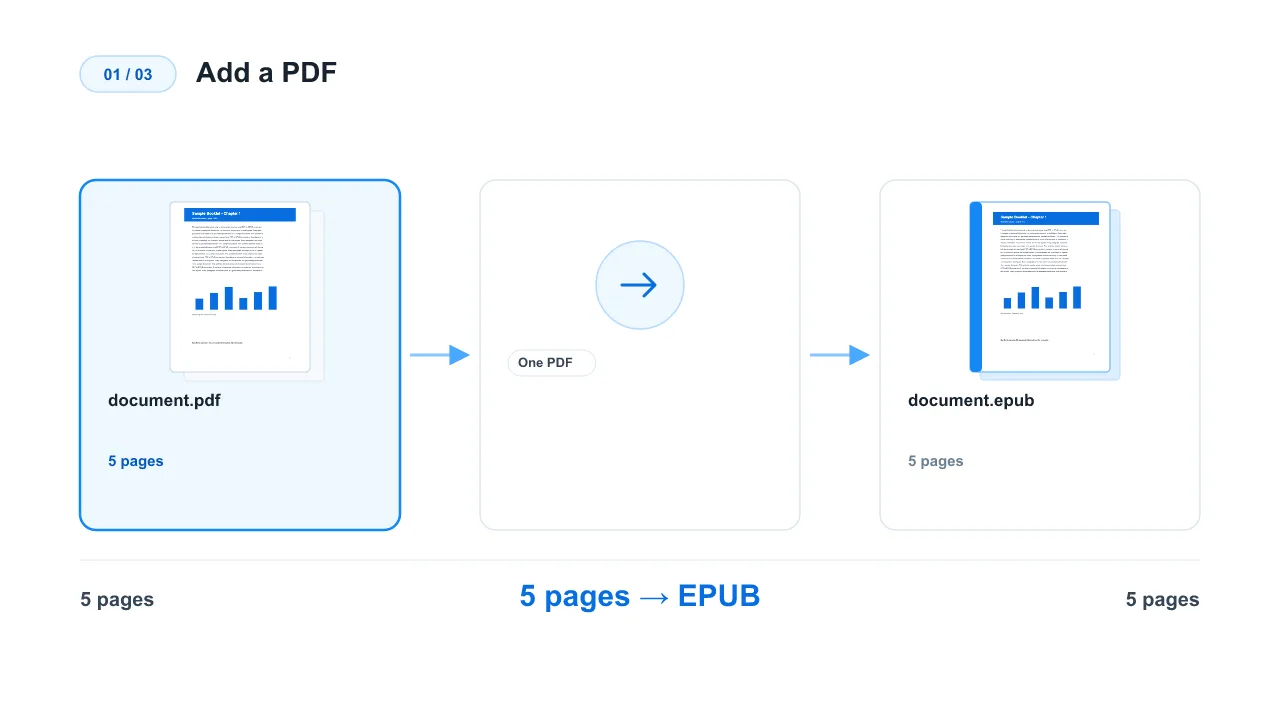
Drag and drop or select the PDF you want to convert. One PDF is processed per run, and its pages are loaded locally in your browser.
Choose a Mode and Options
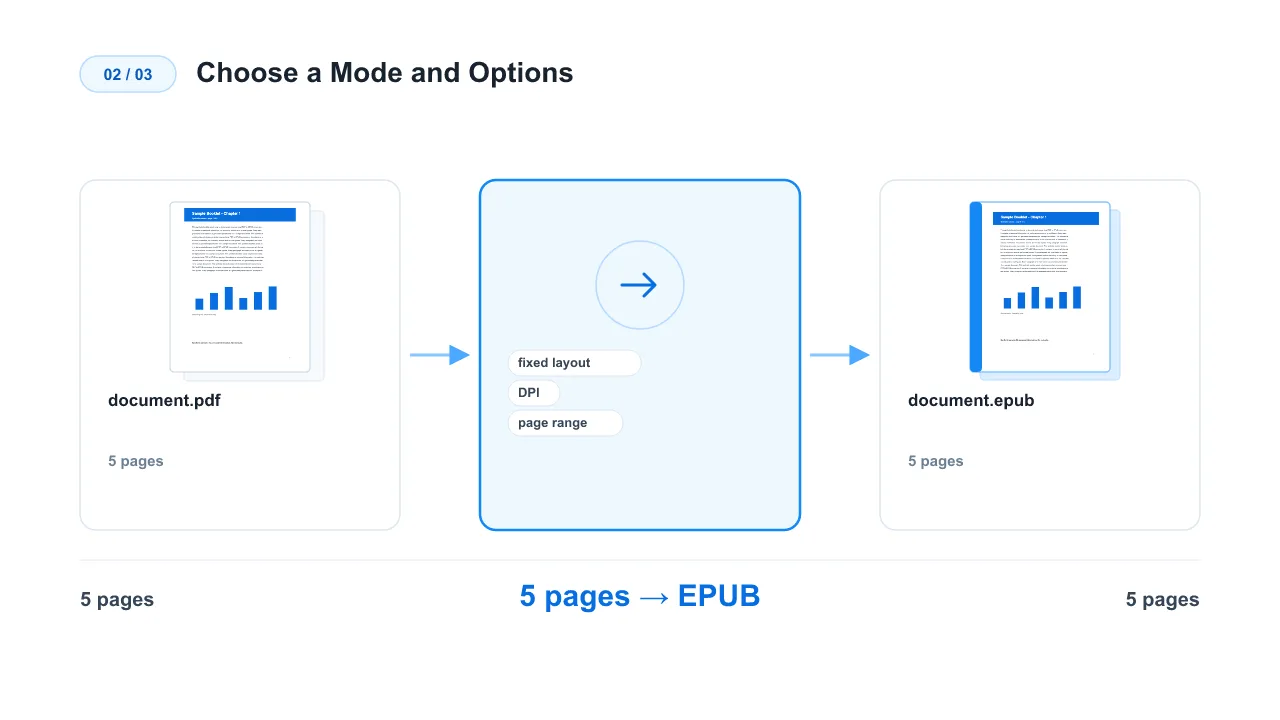
Pick fixed layout or reflowable text. For fixed layout, set the resolution (DPI). Add a book title, author and optional cover, then enter an optional page range such as 1-3,5.
Convert and Download
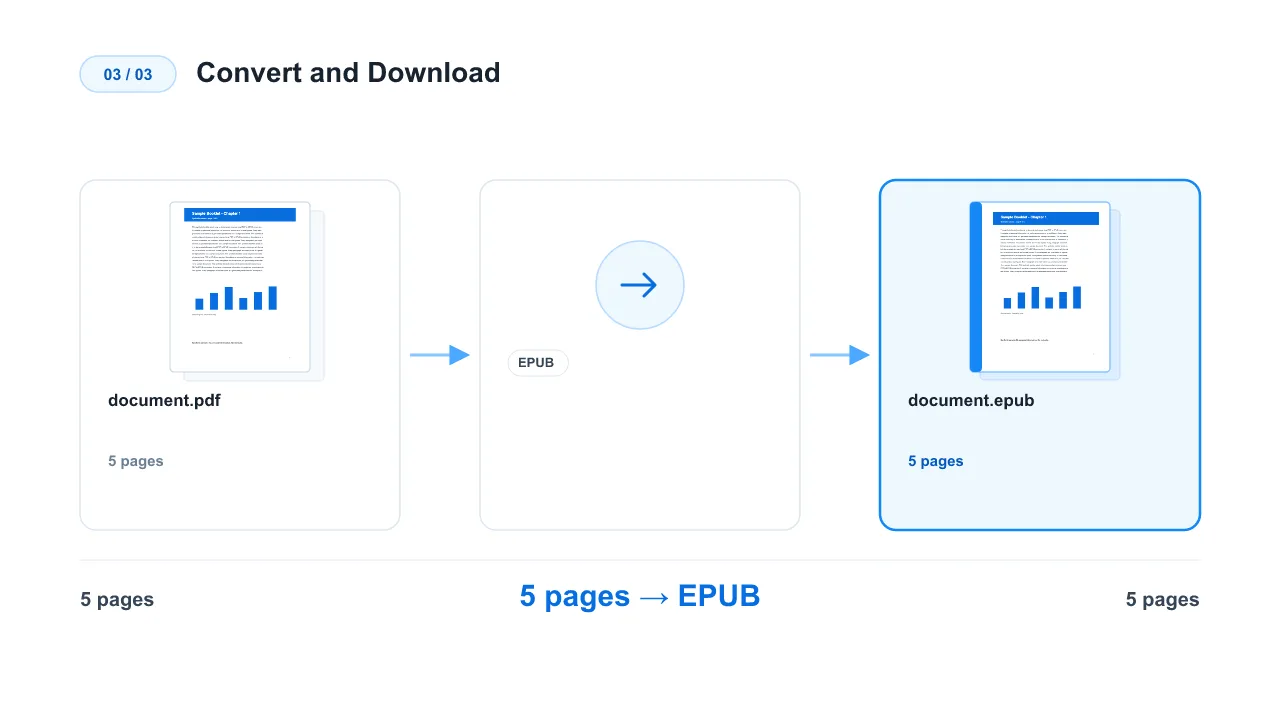
Build the EPUB locally, preview the file details, then download a single .epub. No signup and no watermark.
How to Convert PDF to EPUB
Why Convert PDF to EPUB
EPUB is the open e-book standard used by almost every reader and e-reader. Unlike a PDF, which is locked to a fixed page size, an EPUB can reflow its text to fit any screen — phone, tablet, e-reader or desktop. Converting a PDF to EPUB makes long documents far more comfortable to read on small screens.
Choose the Right Mode
- Fixed layout: Each PDF page is rendered as an image and placed in the EPUB. The result looks exactly like the source PDF, which is perfect for magazines, comics, presentations, scanned documents and design-heavy files. The trade-off is larger files and no text reflow.
- Reflowable: The text of each page is extracted into XHTML so the book adapts to the reader's screen and font size. This is ideal for novels, reports and text-heavy documents, but complex layouts, tables, multi-column sections and footnotes may not keep their original appearance.
Set Good Metadata
Add a clear book title and author, and set the language code (for example en or zh-CN). This metadata helps readers organize their library and lets screen readers and dictionaries work correctly.
Choose the Right DPI (Fixed Layout)
DPI controls how sharp each page image is. Around 150 DPI is enough for most screens and e-readers; 300 DPI gives crisper pages at the cost of larger files and slower processing. A lower DPI produces smaller EPUBs that load faster.
Convert Only What You Need
Use a page range such as 1-3,5,8-10 to export selected pages instead of the whole document. This saves time and storage when you only need a chapter or a few pages.
Limitations
This tool does not perform OCR, so text extraction from scanned images is not possible — scanned PDFs should use fixed layout. Reflowable output keeps the reading order and text but may not preserve precise visual layout. The EPUB is a standard file you can open in any EPUB reader; for Kindle, use Amazon's Send to Kindle service.